You send a clean CSV to a colleague in Germany. They double-click it and see everything crammed into column A: name,price and Tea,3.50 in one cell each. Nothing is wrong with the file. The two Excels simply disagree about what separates fields.
The cause: the regional "list separator"
When you open a CSV by double-clicking, Excel splits it using the list separator from the operating system's regional settings. In English-speaking locales that is usually a comma. In many European locales, such as German, French, Italian, and others, the decimal mark is a comma, so the list separator is a semicolon.
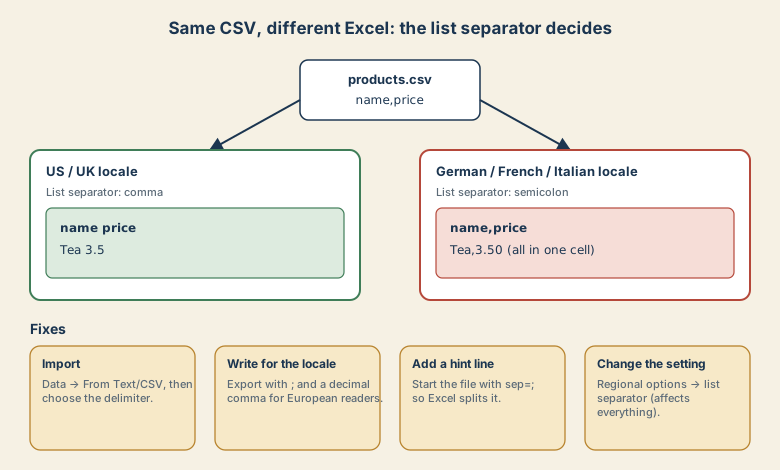
That is why a file with 3.50 and commas works in the US, and why a European file written as Tea;3,50 works in Germany but looks wrong in the US.
The decimal comma problem
Consider this line from a comma-separated file: Tea,3,50. Is that two fields or three? A European reader writes 3,50 for three and a half. When numbers use decimal commas, a comma delimiter becomes ambiguous, which is another reason European exports use semicolons.
Four ways to fix it
1. Import instead of double-clicking. In Excel: Data → From Text/CSV, choose the file, and set the Delimiter (comma or semicolon) in the preview. You can also set the decimal and thousands separators in the options, and set columns such as postcodes to text.
2. Write the file for your reader. If your recipients are in Germany or France, export with a semicolon and decimal commas:
import csv

rows = [("name", "price"), ("Tee", "3,50"), ("Käse", "12,90")]
with open("products.csv", "w", encoding="utf-8-sig", newline="") as f:
    csv.writer(f, delimiter=";").writerows(rows)
With pandas:
df.to_csv("products.csv", sep=";", decimal=",", index=False, encoding="utf-8-sig")

# and reading such a file back
df = pd.read_csv("products.csv", sep=";", decimal=",")
The utf-8-sig encoding adds the byte order mark so that Excel reads umlauts correctly. See why Japanese (and any non-ASCII) text turns garbled in Excel.
3. Add a sep= hint. Excel honors a first line of sep=; (or sep=,) that tells it which delimiter to use. Other tools may show that line as data, so use it only for files meant to be opened in Excel.
4. Change the setting (last resort). In Windows regional options, the list separator can be changed. It affects all programs, so we usually do not recommend it.
Other things Excel does to European data
- Dates:
03/04/2026can be March 4 or April 3 depending on the locale. Use ISO 8601 (2026-04-03) in files you share. - Leading zeros: Postcodes like
01067lose their zero. Import those columns as text. - Long numbers: IBANs and EAN barcodes can turn into scientific notation if treated as numbers. Import as text.
Quick checklist
- Everything in one column? Delimiter mismatch. Import with From Text/CSV.
- Writing for Europeans? Semicolon, decimal comma, UTF-8 with BOM.
- Sharing data across countries? Use ISO dates and state the delimiter.
- Postcodes, IBANs, long IDs: import as text.
Excel's menus and defaults can vary by version and platform.