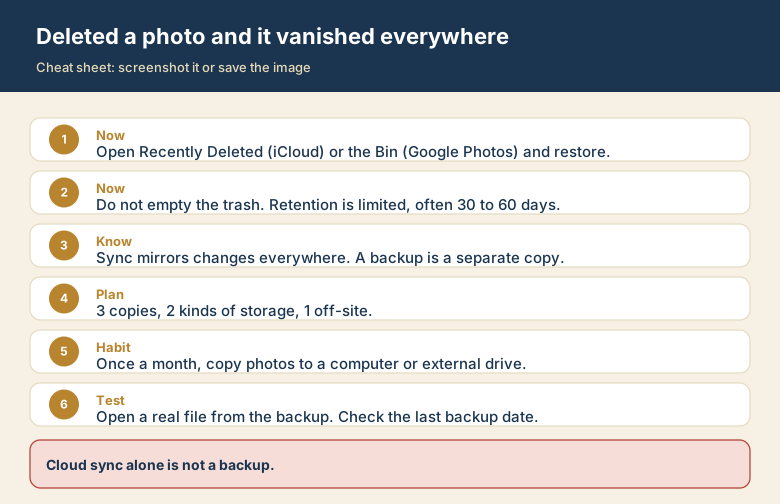
You deleted a few photos from your phone to free space. Later you find they are gone from your tablet, your laptop, and the website, too. This surprises almost everyone, and the reason is simple: cloud photo services are mostly sync tools, not backups.
Sync vs backup in one picture
A sync service keeps every connected place identical. Change one, and the rest follow, including changes you did not mean to make. A backup is a separate, point-in-time copy made from your files. Deleting the original does not delete the copy.
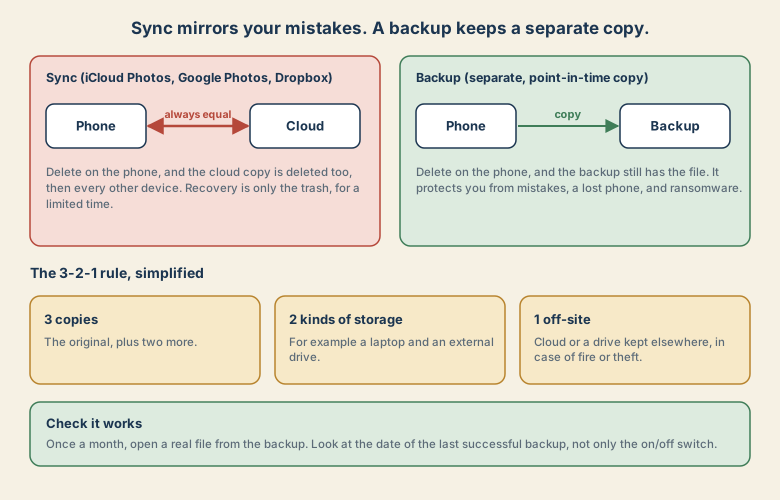
Examples of sync: iCloud Photos, Google Photos with backup turned on, Dropbox, OneDrive, and Google Drive folders on your computer. They are very useful: your library appears on all your devices. But they are a mirror, not a safety net.
First aid: get the photo back now
Act quickly, and do not empty the trash.
- iPhone, iPad, or Mac: open Photos, then Recently Deleted. On the web, sign in at iCloud.com and open Photos, then Recently Deleted. Select the items and choose Recover. Apple keeps deleted items there for a limited time, which has been 30 days.
- Google Photos: open the Bin (called Trash in some regions). Select the items and Restore. Google keeps items there for a limited time, which has been up to 60 days for backed-up photos.
- Dropbox, OneDrive, Google Drive: each has a deleted-files or recycle-bin page on its website with a restore button, again for a limited time.
- If nothing is there, check a computer or external drive where you may have copied photos earlier, and any messages or albums where you shared them.
Retention periods can change, so look at the service's help page if you are close to the limit.
What a backup protects you from
- Accidental deletion, like this one.
- A lost, stolen, or broken phone. The copy lives somewhere else.
- Ransomware or a corrupted file, which sync tools happily copy.
- An account problem, such as being locked out of your cloud account.
A simple 3-2-1 plan
The classic rule is short:
- 3 copies: the original plus two more.
- 2 kinds of storage: for example your phone and an external drive, so one failure type cannot take everything.
- 1 off-site: a cloud service or a drive kept elsewhere, in case of fire or theft.
A realistic plan for a non-expert looks like this:
- Keep your phone photo sync on. It is copy number one, plus convenience.
- Once a month, copy the photo library to a computer or an external drive. This is a separate copy that deletions cannot reach.
- Keep either a cloud copy or a second drive somewhere else. Together with step 2, this makes the "off-site" part.
Check that the backup works
A backup you never test is only a hope.
- Look at the last backup date. On iPhone, Settings, your name, iCloud, iCloud Backup shows the last successful backup. A switch that says "On" does not prove a recent copy exists. Backups stall when Wi-Fi is missing or storage is full.
- Open a real file from the backup once a month. Can you see the photo, and does it open?
- Do this before you need it, not on the day you replace a phone.
A 30-second test: do you have sync or backup?
Ask three questions about your photos.
- If I delete a photo on my phone, does it disappear on my other devices? If yes, it is sync.
- Is there a copy that I made on purpose, on a different device or service, that deleting on the phone cannot reach? If not, you have no backup.
- When did I last open a file from that copy? If you cannot answer, you have an untested backup.
Where your photos live
| Service | What it does | Deletion behaviour |
|---|---|---|
| iCloud Photos | Syncs your library across Apple devices | Delete on one device and it moves to Recently Deleted everywhere |
| Google Photos with backup | Uploads and syncs your library | Delete in the app and it moves to the Bin |
| Dropbox, OneDrive, Google Drive folders | Syncs folders across devices | Deleting a file in the folder deletes it everywhere |
| An external drive you copy to | A separate copy | Safe from deletion on the phone |
Backup options compared
| Option | Strength | Watch out for |
|---|---|---|
| External drive | Cheap, you own it | Easy to forget, and can fail or be stolen with the computer |
| Second cloud service | Off-site, automatic | A different account and cost, and still depends on one company |
| Home network storage | Handy for families | Needs setup and its own backup |
| Paid cloud backup service | Automatic and versioned | Monthly cost, and you must still test restores |
Pick one local and one off-site option. Together they cover most disasters.