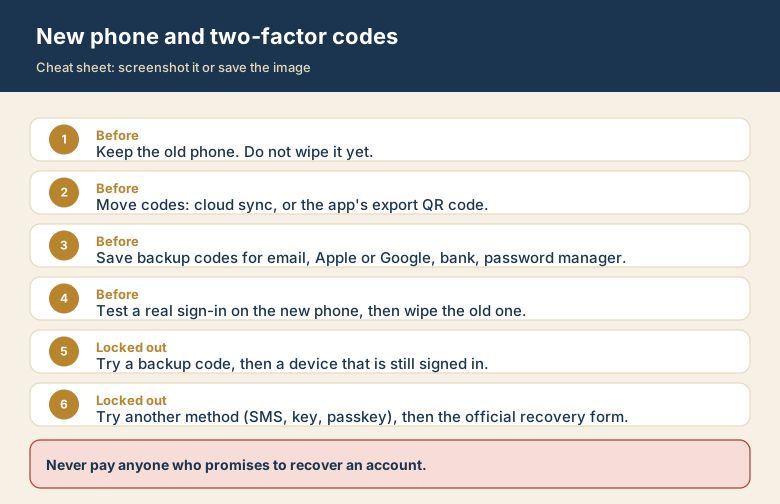
Two-factor sign-in is great until you change phones. The six-digit code in your authenticator app is not stored in your Google, Apple, or bank account. It is generated by a secret kept inside the app on one phone. Hand that phone in for a trade-in without moving the secret, and you may lose the second key to your own email.
Why the new phone is empty
When you set up two-factor, the service shows a QR code. Your authenticator app stores the secret inside it, and from then on it makes a fresh code every 30 seconds. Installing the same app on a new phone creates an empty app. The service still expects a code from the old secret.
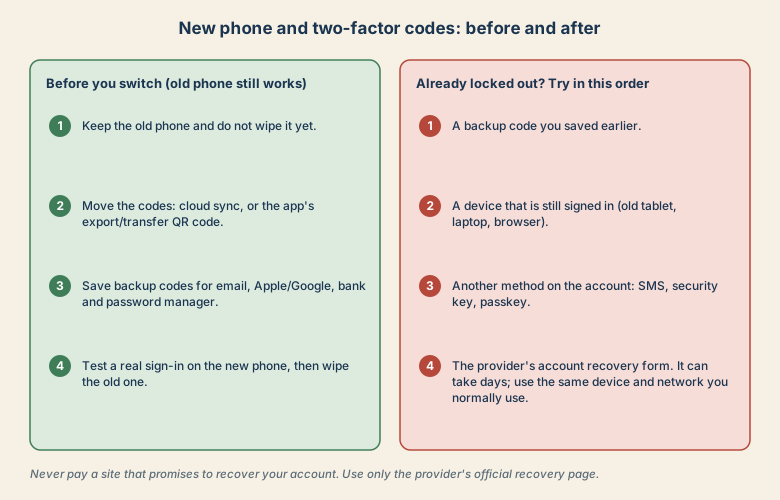
Before you switch (old phone still works)
Do these four things while you still have the old phone in your hand.
1. Keep the old phone and do not wipe it yet. Finish everything below first. If you trade it in on the same day, you lose your safety net.
2. Move the codes. The method depends on the app:
- Google Authenticator: sign in with your Google Account inside the app and the codes sync, so signing in on the new phone brings them back. You can also use the menu's transfer option: export accounts on the old phone as a QR code, then scan it with the new phone.
- Microsoft Authenticator: turn on its cloud backup before you switch, then restore on the new phone using the same backup account.
- Other apps: look for an export, transfer, or backup option. If an app has none, you must add each account again from its original QR code or recovery step.
3. Save backup codes for the accounts that matter most. Start with your main email, your Apple or Google account, your bank, and your password manager. Store the codes on paper or in a safe place that is not only on the phone you are replacing.
4. Test a real sign-in on the new phone. Open a private browser window, sign in to an account that uses two-factor, and enter a code from the new phone. Only wipe the old phone after this works.
If you are already locked out
Work through these in order. Each step is more effort than the one before.
- A backup code. Check your password manager, an email to yourself, a printed sheet, or a notes file from when you set it up.
- A device that is still signed in. An old tablet, a laptop, or a browser session may still be logged in. From there you can often open security settings and add a new authenticator or change the method.
- Another method on the account. Many services also accept a text message, a phone call, a security key, or a passkey. Choose "try another way" on the sign-in screen.
- The provider's official account recovery form. Expect questions about past passwords, recent sign-in places, and devices. It can take days. Fill it in from the device and network you normally use, because that helps the service trust the request.
Two cautions:
- Be careful about who helps you. Sites and "support agents" who offer to recover accounts for a fee are a common scam. Use only the provider's own recovery page, reached by typing its address yourself.
- Do not keep retrying wrong codes. Repeated failures can lock the account for longer.
Make the next switch easy
- Keep two methods on important accounts, for example an authenticator app plus a security key or passkey.
- Keep backup codes updated. A used code does not work twice.
- Set date and time to automatic on the new phone. A wrong clock makes valid codes fail.
- Turn on cloud sync or backup in the authenticator app today, rather than on the day you switch phones.
Which accounts to protect first
Spend your effort where a lockout hurts most.
- Your main email. Password resets for most other accounts arrive here.
- Your Apple or Google account, which holds photos, backups, and the sign-in for your phone.
- Your password manager, if you use one.
- Banking and payment accounts.
- Work accounts. Check your employer's rules, because some require your IT team to reset two-factor sign-in.
Which method is easiest to recover?
| Method | Survives a phone swap? | Notes |
|---|---|---|
| Authenticator app without sync or backup | No | Codes live on one device only |
| Authenticator app with cloud sync or backup | Usually yes | Sign in to the sync account on the new phone |
| SMS code | Yes, if you keep the number | Easy, but a phone number can be hijacked |
| Passkey | Often yes, through the platform's sync | Check how your platform syncs passkeys |
| Hardware security key | Yes | Keep a second key stored safely |
The best setup for most people is two methods on every important account, for example an authenticator app plus a passkey or a spare security key.