Tech problems rarely arrive at a good time. This page is a map of our step-by-step guides for everyday problems, so you can find the right one fast and fix it without guessing.
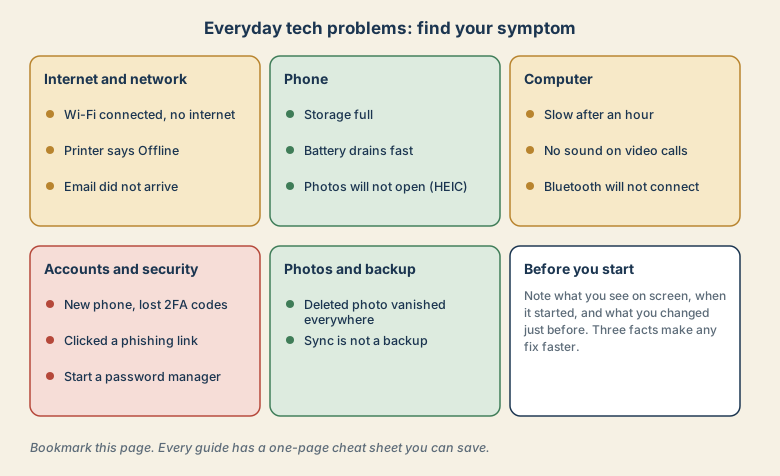
Find your symptom
Internet and network
| What you see | Guide |
|---|---|
| Wi-Fi shows connected but pages will not load | Wi-Fi connected but no internet |
| The printer says Offline | Printer says Offline |
| An email did not arrive, or went to spam | Email not arriving |
Phone
| What you see | Guide |
|---|---|
| Storage full | Phone storage full |
| Battery drains too quickly | Battery draining fast |
| iPhone photos will not open on Windows | HEIC photos |
Computer and devices
| What you see | Guide |
|---|---|
| The laptop gets slow after an hour | Slow laptop |
| No sound, or nobody can hear you on a call | Video call audio |
| Bluetooth headphones will not connect | Bluetooth headphones |
Accounts and security
| What you see | Guide |
|---|---|
| You changed phones and lost your authenticator codes | New phone and two-factor codes |
| You clicked a suspicious link | I clicked a phishing link |
| You want to stop reusing passwords | Password manager in 20 minutes |
Photos and backup
| What you see | Guide |
|---|---|
| A photo you deleted vanished from every device | Sync is not a backup |
The method behind every guide
Most tech problems are solved the same way, and it is worth knowing.
- Name the symptom exactly. "The internet is broken" is vague. "The Wi-Fi is connected but pages will not load on my laptop, while my phone works" is a clue.
- Split the problem into links or layers. Device, network, service. Output or input. Sync or backup.
- Test one thing at a time, and note the result. Changing three things at once hides the cause.
- Fix the cause, not the symptom. A restart helps, but if the problem returns, find out why.
- Prevent it from coming back. A small routine, such as a monthly backup check, beats an emergency.
Three habits that prevent most problems
- Keep a separate backup of what you cannot replace. Sync is not enough.
- Protect your main email with a strong, unique password and two-factor sign-in, because it unlocks everything else.
- Restart and update regularly. Many odd problems clear up that way, and updates close security holes.
Before you contact support
Note what you see on screen (take a screenshot), when it started, what you changed just before, and what you have already tried. Support can help much faster with those facts than with "it does not work".
Quick checklist
- Find the symptom, not the suspected cause.
- Open the guide and follow the steps in order.
- Save the cheat sheet at the end of the guide.
- Add a small routine so it does not come back.