You sent an important message, and the reply never came. Or you were expecting a confirmation email and it did not arrive. Before you resend ten times, find out where the message went. Email has two outcomes that look the same from outside: it was rejected, or it was delivered somewhere you did not look.
Step 1: Did a bounce message come back?
A bounce message is an automatic reply, often from a "Mail Delivery Subsystem" or "Postmaster", that tells you a message could not be delivered. It usually arrives within minutes.
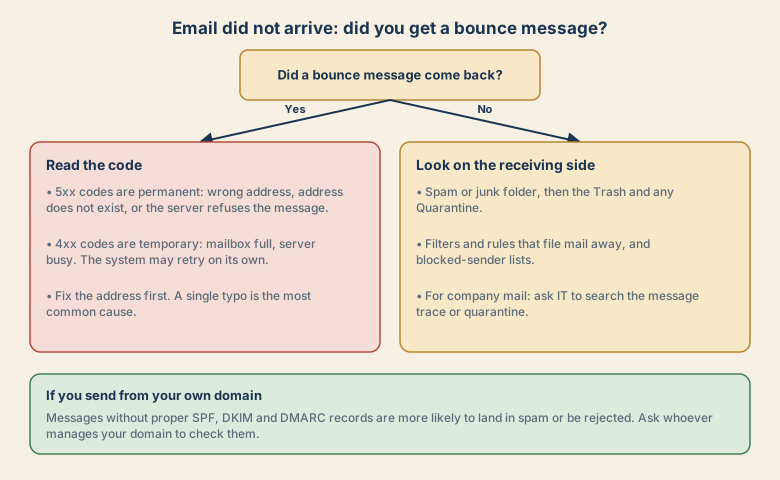
If a bounce came back
Read the plain-language line first. Then use the code:
- Codes starting with 5 (such as 550): a permanent failure. Common causes are an address that does not exist, a typo in the address, or a server that refuses the message. Fix the address and send again.
- Codes starting with 4 (such as 452): a temporary failure, such as a full mailbox or a busy server. The system may retry on its own. If it keeps failing, contact the person another way.
Most bounces are explained by a single typo in the address, so check that first.
Step 2: No bounce? Look on the receiving side
Without a bounce, the message was usually accepted, then filed somewhere unexpected. Ask the recipient, or check your own inbox if you are the one waiting, in this order:
- Spam or junk folder. In Gmail, search for
in:spam. In Outlook, open Junk Email. - Other tabs and folders. Gmail may place mail in Promotions or Updates. Outlook may sort mail into Other.
- Filters and rules that move mail to another folder or delete it.
- Blocked sender lists. An address blocked once, perhaps by accident, stays blocked.
- Quarantine (company mail). Security systems can hold messages for review. Ask your IT team to search the message trace or quarantine.
When you find a message in spam, mark it as Not spam so future mail from that sender arrives normally.
Step 3: If you send from your own domain
If you send mail from your own domain, such as a shop or small business, check that the domain proves it is allowed to send. Three records do this:
- SPF lists which servers may send for the domain.
- DKIM adds a signature that shows the message was not changed.
- DMARC tells receiving servers what to do when those checks fail.
Messages that fail these checks are more likely to be sent to spam or rejected. Whoever manages your domain or email service can check the records.
Step 4: Practical habits
- Check the address character by character before sending anything important.
- Keep a short, clear subject line and avoid trigger words that look like spam.
- Ask for a quick acknowledgement on important messages, instead of assuming it arrived.
- For urgent matters, use a second channel such as a call or a message.
- Keep your mailbox from filling up. A full mailbox causes temporary bounces.
Where a message can go missing
An email passes through several places, and each can stop it.
- Your app: it may not have sent, or it may be stuck in the Outbox.
- Your outgoing server: it may refuse the message, for example for size or sender reasons.
- The internet: a delay or a temporary error, which usually retries.
- The receiving server: it may reject the message, or accept it and then judge it spam.
- The recipient's filters and rules: they may file or hide it.
- The recipient's app: it may not have downloaded it yet.
A bounce message comes from steps 2 to 4. No bounce points to steps 4 to 6, where the message was accepted but not shown.
Search tips
- Gmail: search
in:anywhere from:nameto look in spam and trash as well as the inbox, and usein:spamto look only in spam. - Outlook: search across all folders, and open Junk Email and Deleted Items.
- Search by the sender's name and a word from the subject, not only the exact subject.
- Check the spam or junk settings and the list of blocked senders.
When you are waiting for a code or confirmation email
Sign-up and sign-in emails are the most common missing messages, and the steps are slightly different.
- Wait about a minute, then check spam and other tabs.
- Check the address you typed on the sign-up form. A typo sends the code to someone else.
- Ask for the code again, but not many times in a row, since too many requests can pause delivery.
- Check that the service is allowed to email you. Some company and school mail systems block messages from new senders.
- Try another method such as a text message or an authenticator, if the service offers it.
Attachments and size
Many providers limit attachments to roughly 20 to 25 MB, and large files can bounce or be turned into links. If a message with an attachment failed, try a smaller file, a compressed version, or a shared link from a cloud service.
Common mistakes
- Resending many times, which can trigger spam filters and fill the recipient's inbox with duplicates.
- Assuming "sent" means "read".
- Trusting auto-complete and picking a similar address. Check the full address before sending.
- Ignoring the bounce message, which often says exactly what to fix.
- Checking only the inbox.
Keep your own mail healthy
- Keep the mailbox below its storage limit.
- Review blocked senders and rules once in a while.
- Mark legitimate messages as Not spam so filters learn.
- For a business, ask whoever manages your domain to confirm SPF, DKIM, and DMARC, and to review them when you change email providers.
Quick checklist
- Read the bounce message if there is one. Fix typos first.
- No bounce: check spam, other tabs, filters, blocked senders, and quarantine.
- Sending from your own domain: check SPF, DKIM and DMARC.
- For urgent messages, confirm by another channel.
Save this cheat sheet
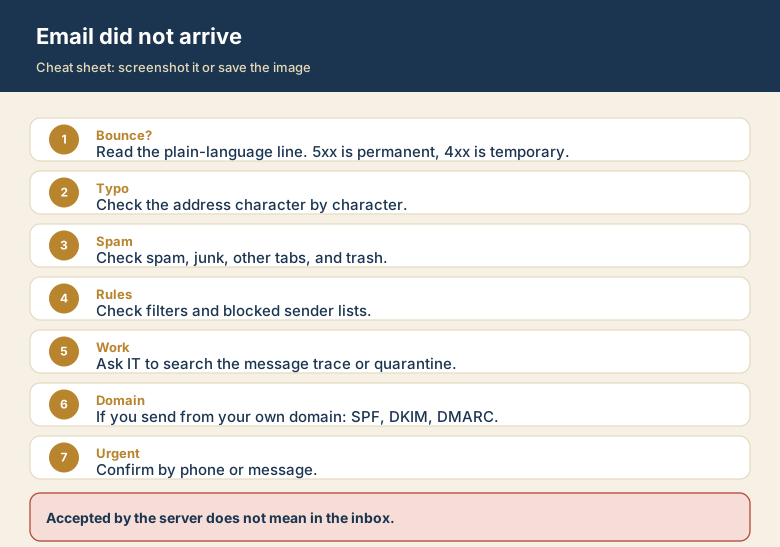
Screenshot this or save the image. It is the short version of the whole guide, and it is easier to find in a hurry than a web page.