You turn the laptop on and it feels quick. An hour later the fans spin, windows stutter, and typing lags. After a restart, it is fast again. That pattern is a strong clue: something is building up over time, and the most common thing is memory.
Why the computer slows down over time
A computer keeps the programs and pages you are using in memory (RAM). When memory fills, the system has to push things out to the much slower disk and bring them back later. That swapping is what you feel as lag. It does not mean the machine is old or broken.
Three habits fill memory:
- Many browser tabs left open all day.
- One app that keeps using more memory the longer it runs.
- Many startup programs that run in the background from the moment you sign in.
Step 1: Look at what is using memory
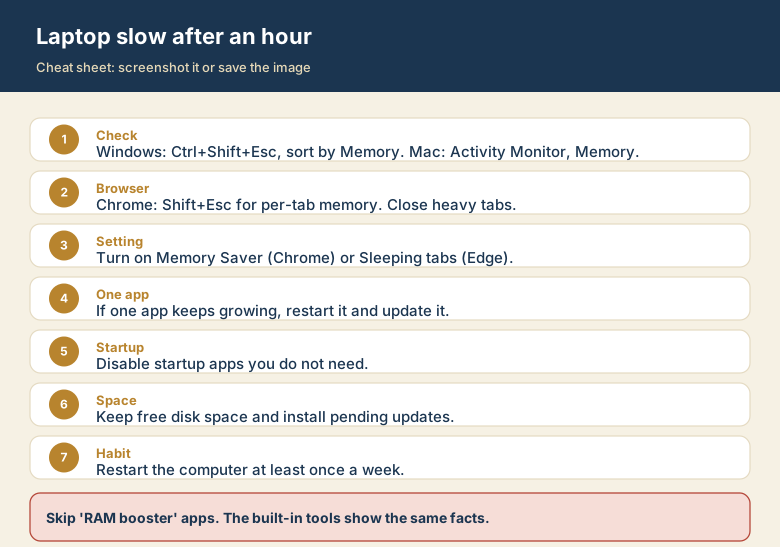
- Windows: press Ctrl+Shift+Esc to open Task Manager. On the Processes tab, click the Memory column to sort from largest to smallest.
- Mac: open Activity Monitor and choose the Memory tab. The Memory Pressure graph at the bottom shows green when things are fine, yellow when they are tight, and red when the system is struggling.
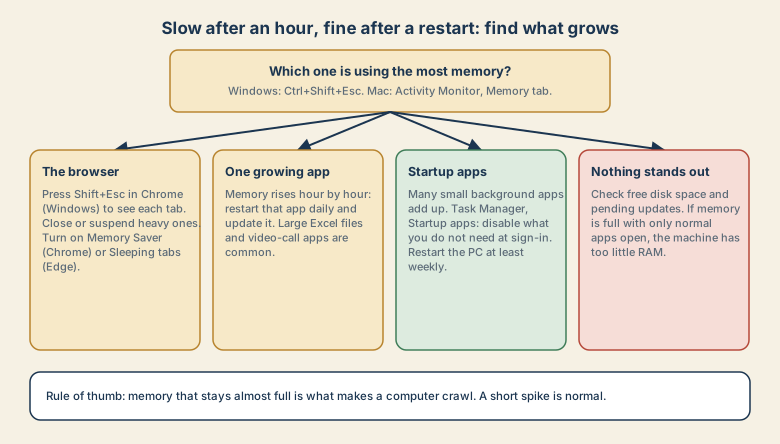
Look at the top few entries, then follow the matching branch below.
If the browser is on top
Browsers run each tab and extension as a separate process, so the total adds up fast.
- In Chrome on Windows press Shift+Esc to open Chrome's own Task Manager. On a Mac, use the Window menu, then Task Manager. It lists memory per tab and extension.
- Close the heavy ones. Pages with video, web mail, dashboards, and online design tools are typical.
- Turn on Memory Saver in Chrome (Settings, Performance). It puts tabs you are not using to sleep. Edge has a similar feature called Sleeping tabs.
- Disable extensions you do not recognise. Each one runs all the time.
- Use bookmarks or a reading list for pages you "might need later", instead of leaving 50 tabs open.
If one app keeps growing
Watch the same app for an hour. If its memory only goes up, it may have a memory leak, a bug where memory is not given back.
- Quit and reopen that app a few times a day.
- Install its latest update. Leaks are often fixed in newer versions.
- Large spreadsheets and long video calls are frequent examples. Closing and reopening a big file also clears the memory it holds.
If many small programs add up
On Windows, open Task Manager and go to Startup apps. Anything marked High impact that you do not need at sign-in can be set to Disabled. This does not uninstall the program; it just stops it launching every time. On a Mac, check System Settings, General, Login Items.
Also restart the computer at least once a week. On Windows, choose Restart rather than Shut down, because fast start-up can carry the old session's state into the next boot.
If nothing stands out
- Check free disk space. A nearly full drive slows swapping and updates. Free up room, as in the full-storage guide for phones, but for your computer.
- Look for pending updates. An update that has downloaded but not installed can keep background processes busy.
- Compare total memory use to total RAM. If memory is almost full with only normal apps open, the computer simply has too little RAM, and the fix is more memory or a lighter way of working.
Quick reference
| What you see | Likely cause | First fix |
|---|---|---|
| Browser at the top, many tabs | Too many tabs and extensions | Close tabs; turn on Memory Saver or Sleeping tabs |
| One app's memory only rises | Memory leak | Restart it; install updates |
| Dozens of small background items | Too many startup programs | Disable high-impact startup apps; restart weekly |
| Nothing stands out, memory nearly full | Not enough RAM, or low disk space | Free disk space; consider more RAM |
Memory, disk, or CPU? A two-minute test
Open the Performance tab in Task Manager (Windows) or the Memory, CPU, and Disk tabs in Activity Monitor (Mac) while the computer is slow.
- Memory almost full: the classic cause of slowing down over an hour. Follow the browser, growing-app, and startup steps above.
- Disk at or near 100 percent: the computer is reading or writing constantly. Look for updates, indexing, backups, or a nearly full drive.
- CPU at or near 100 percent: something is working hard. The Processes tab shows which program. A video call, a runaway process, or security scanning is typical.
- All three look calm but it still feels slow: check heat, a weak power-saving mode, or a failing drive.