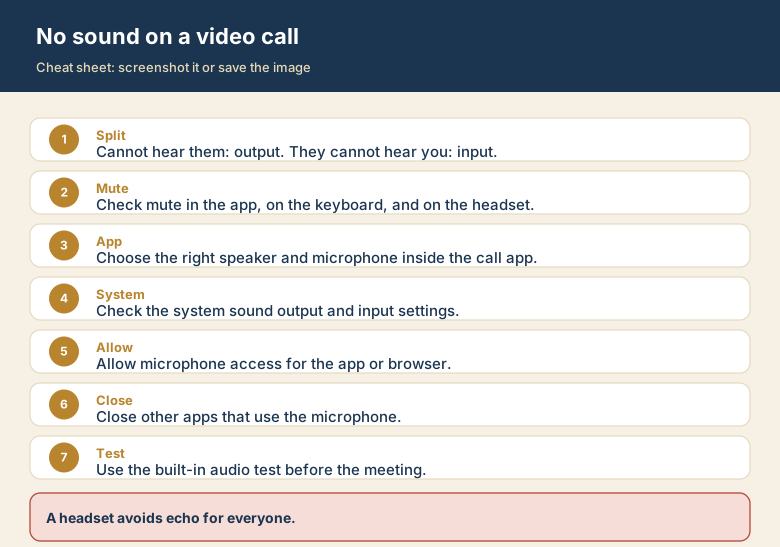
Five minutes before the meeting you join, and nothing works. Either everyone's mouths are moving silently, or they keep asking, "Are you there?" The fix is quick once you stop treating this as one problem. It is two separate problems, and each has its own device.
Decide the direction first
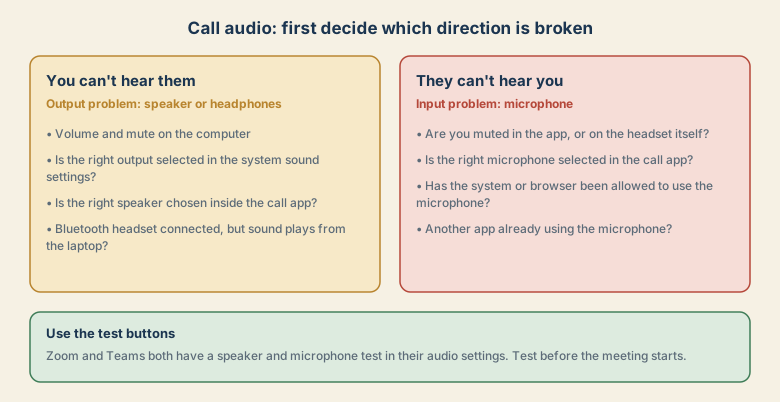
- You cannot hear them: this is an output problem. Output is where sound comes out: speakers, headphones, a monitor's built-in speakers, a Bluetooth headset.
- They cannot hear you: this is an input problem. Input is where sound goes in: your microphone.
Many people change settings at random and make things worse. Choosing the direction first cuts the list of suspects in half.
Why it so often turns out to be "the wrong device"
Your computer can have several audio devices at once: built-in speakers, a monitor with speakers, a Bluetooth headset, a webcam with a microphone, a docking station. When you plug something in or connect Bluetooth, the system may quietly switch to it. The sound did not disappear. It is going somewhere else, such as an unused monitor or a headset on your desk.
If you cannot hear them (output)
- Check volume and mute on the computer and on any speaker or headset.
- Check the system output device. Windows: Settings, System, Sound, then choose the right device under Output. Mac: System Settings, Sound, Output.
- Check the speaker chosen inside the call app. In Zoom, open Settings, Audio. In Teams, open Settings, Devices. The app can use a different device from the system.
- Bluetooth: if the headset says it is connected but sound plays from the laptop, switch the output manually, or disconnect and reconnect the headset.
- Play a short video or the app's speaker test to confirm.
If they cannot hear you (input)
- Look for mute in three places: the call app, the keyboard or laptop shortcut, and the headset itself. Some headsets have a physical mute switch or a boom arm that mutes when raised.
- Check the microphone chosen in the call app. In Zoom, Settings, Audio, Microphone. In Teams, Settings, Devices.
- Check permissions. Windows: Settings, Privacy and security, Microphone, and make sure apps may use it. Mac: System Settings, Privacy and Security, Microphone, and enable the app. In a browser, click the lock or microphone icon next to the address and allow the microphone.
- Close other apps that use the microphone. Another call app or a recording tool can hold it.
- Use the app's microphone test and watch the level bar move when you talk.
Use the test before the meeting
Both Zoom and Teams have built-in tests for the speaker and microphone in their audio settings. Do a one-minute test five minutes before an important call. You will find the problem while there is still time to fix it.
If it still fails
- Restart the call app, then restart the computer. This clears a stuck audio device.
- Unplug and replug the headset, or use a different USB port.
- Try the browser version of the call, or the app instead of the browser, to see whether the problem follows the app.
- Update the call app and the operating system. Audio fixes arrive in updates.
A two-minute pre-flight check for important calls
Do this five minutes before any call that matters, such as an interview, a client meeting, or a class.
- Open the call app's audio settings and run the speaker test. You should hear the tone from the device you want.
- Run the microphone test and speak. The level bar should move.
- Check that the right camera and microphone are chosen if you have a webcam, headset, or monitor with built-in devices.
- Close apps you do not need, especially other call apps and recording tools.
- Plug in power if you are on a laptop, and check your network connection.
Why people hear an echo
Echo happens when your microphone picks up the sound coming from your own speakers and sends it back. It is usually the other person who hears it. The fix is simple.
- Use a headset or earphones. This removes the loop.
- Lower the speaker volume, or move the microphone away from the speakers.
- Make sure only one device is in the call. Two laptops in the same room, both joined, create feedback.
Headset or built-in devices?
| Choice | Good for | Watch out for |
|---|---|---|
| Laptop speakers and microphone | Quick calls alone | Echo, room noise, poor quality |
| Wired headset | Reliable and clear calls | Needs the right port or adapter |
| Bluetooth headset | Moving around | Connection drops, and lower quality when the microphone is on |
| USB microphone | Clear speech | Needs to be selected as the input device |