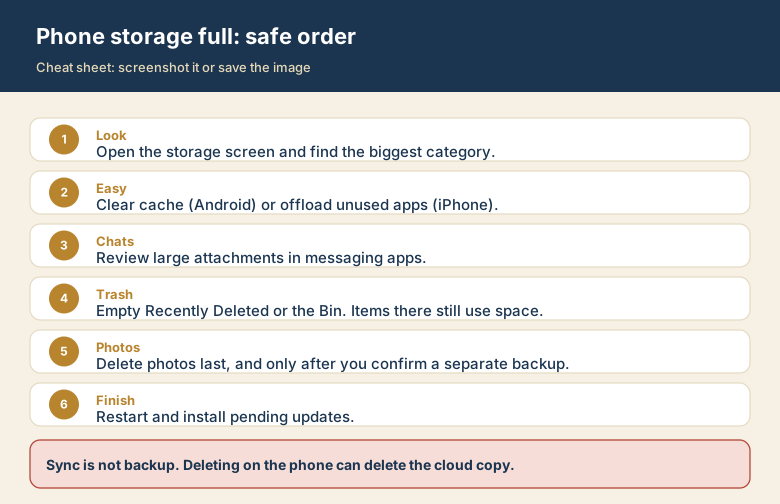
The warning appears at the worst moment: you are about to take a photo, install an update, or open a message. The usual reaction is to start deleting whatever is nearest. Do this instead: look first, then delete from the biggest category.
Step 1: See what is using the space
- iPhone: Settings, General, iPhone Storage. Wait for the colored bar and the app list to load.
- Android: Settings, Storage (on some phones under Device care or Battery and device care). The Files by Google app also lists large files and unused apps.
Menu names shift a little between versions, but every phone has this screen. Note the two or three biggest items. That is where the room is.
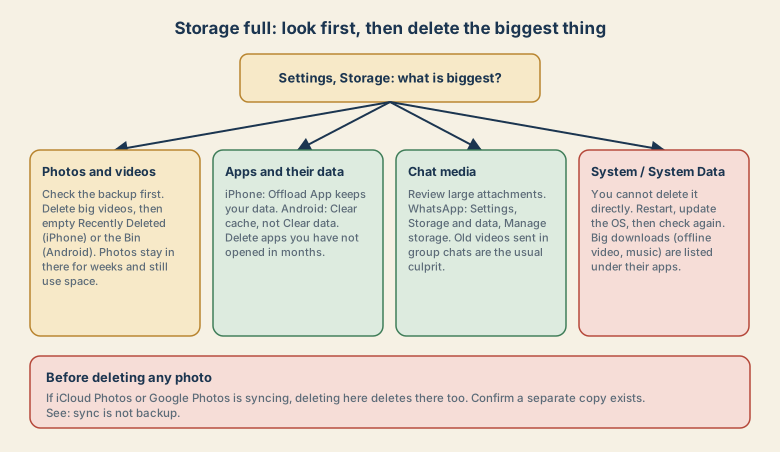
Step 2: Photos and videos, but back up first
Photos and videos are usually the largest category, and the one you can least afford to lose. Before you delete anything, check where the copy is.
If iCloud Photos or Google Photos backup is on, those services sync your library. Deleting a photo on the phone removes it from the cloud and your other devices too. Sync is not a backup; the sync vs backup guide explains the difference. Make sure a separate copy exists, such as a computer or an external drive, before you clear space.
When you are sure, work from the biggest files:
- Videos take far more room than photos. On iPhone, open Photos, Albums, Media Types, Videos. On Android, use the large-files list in Files by Google.
- Empty the trash folder. Recently Deleted (iPhone) and the Bin (Android) keep items for weeks and they still count against your storage.
- With iCloud Photos on, Optimize iPhone Storage keeps small versions on the phone and full-size originals in iCloud. In Google Photos, the Free up space option removes local copies that are already backed up. Both are safe only when the upload has actually finished.
Step 3: Apps and their data
An app can be small while its stored data is large.
- iPhone: in the storage list, tap an app. Offload App removes the app but keeps its documents and data, so reinstalling restores your place. Delete App removes both.
- Android: Settings, Apps, pick the app, Storage. Use Clear cache first. Clear data resets the app, so use it only when you accept that.
Look for apps you have not opened in months, games with large downloads, and offline downloads in streaming and music apps.
Step 4: Chat media
Group chats quietly collect videos and forwarded files.
- iPhone: in iPhone Storage, tap Messages, then Review Large Attachments.
- WhatsApp: Settings, Storage and data, Manage storage. It lists the largest items and chats.
Remove the heavy items you no longer need. Save anything important to your photo library or files first.
Step 5: System Data and the leftovers
If System Data (iPhone) or System (Android) stays large after the steps above:
- Restart the phone.
- Install pending system updates.
- Check again after a day. Caches shrink as the system tidies them.
If a cleaned-up phone is still nearly full, you may simply need more space: move photos to a computer or an external drive, or choose a plan with more storage.
Leave room for updates
System updates need free space to download and unpack. Aim to keep several gigabytes free so that updates and the camera do not fail at a bad moment.
Why storage fills up silently
In IT support, a full phone is one of the most frequent complaints, and it rarely comes from one big mistake. It builds up from small things: video that takes far more room than photos (a minute of 4K video can take hundreds of megabytes), chat apps that save every forwarded clip, apps that cache more each month, and downloads you forgot. Phones also need free space for themselves, so a "full" phone slows down, cannot update, and cannot take photos.
Common mistakes
- Deleting photos first. They feel like the obvious choice, but they are the only thing you cannot get back. Do the safe steps first.
- Clearing app data instead of cache (Android). "Clear data" resets the app and can erase local data. "Clear cache" is the safe option.
- Emptying Recently Deleted or the Bin without looking. That step is permanent.
- Buying more cloud storage as a fix. More iCloud or Google space helps only if your library is synced there and you use options such as Optimize Storage. Extra space alone does not change what is on the phone.
- Deleting a chat app to free space, without checking that its chat history is backed up.