You airdrop or email a photo from your iPhone to a Windows laptop and it will not open. The file ends in .HEIC, and the computer does not know what to do with it. Nothing is broken. This is a format problem, and you have three ways to fix it.
What HEIC is
HEIC is the file format iPhones use for photos by default. It makes smaller files than JPEG with similar quality, which saves storage. The catch is compatibility: some Windows programs, older computers, websites, and print services cannot open it.
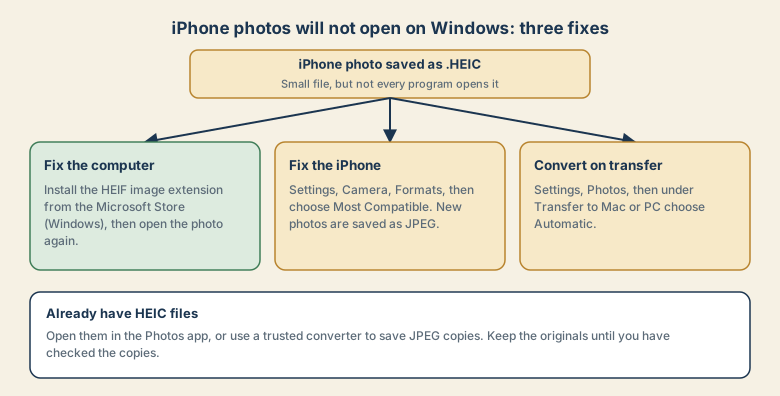
Fix 1: Add support on the Windows computer
Windows can open HEIC photos once it has the right extension.
- Open the Microsoft Store and search for the HEIF image extension.
- Install it.
- Open the photo again.
Some video formats may need a separate extension, and the store page tells you whether there is a charge. Keep the computer updated.
Fix 2: Save photos in a more compatible format
If you often share photos with people or services that do not handle HEIC, change the iPhone's setting:
- Open Settings, then Camera, then Formats.
- Choose Most Compatible.
New photos are then saved as JPEG. The files are larger, so check your storage. The change affects new photos only; photos already taken stay HEIC.
Fix 3: Convert photos when you transfer them
When you plug the iPhone into a PC, it can convert photos for you:
- Open Settings, then Photos.
- Scroll to the bottom and, under Transfer to Mac or PC, choose Automatic.
With this setting, photos sent to the computer are converted to a compatible format when needed.
If you already have HEIC files
- Open them in the Photos app on a Mac or iPhone, and export them as JPEG.
- Use a trusted converter on your computer to save JPEG copies. Avoid unknown websites that ask you to upload private photos.
- Keep the originals until you have checked the copies.
When an upload form rejects the photo
Many websites accept only JPEG or PNG. Before you upload an ID, a form, or a listing photo, save a JPEG copy and upload that.
Share without the problem
- When sending a photo to someone, many apps convert to a compatible format automatically.
- When sharing a link to a photo album, the recipient can usually view it in a browser without any extension.
HEIC, HEIF, JPEG, PNG, WebP: a short guide
| Format | What it is | Where you meet it |
|---|---|---|
| HEIC / HEIF | Efficient photo format, small files | iPhones by default, many Android phones |
| JPEG (JPG) | The most widely supported photo format | Everywhere, including forms and printers |
| PNG | Lossless images, good for screenshots and graphics | Screenshots, logos |
| WebP | Modern web image format | Websites and some apps |
Compatibility, not quality, is the difference. HEIC usually keeps good quality at a smaller size, but JPEG opens almost anywhere.
Live Photos and video
A Live Photo is a short clip stored with a still image, so it may appear as two files when you copy it to a computer. Videos from recent iPhones often use an efficient format that some older players cannot open. The compatibility setting in Camera Formats also affects video, and the Windows store may offer a video extension if you need it.
Android users
Android has supported HEIC in modern versions, so many Android phones can open them. Older phones, some gallery apps, and some websites still cannot. If a file does not open, check the app's update, then try a viewer that supports the format.
A simple sharing workflow
- Take photos in the default format to save space.
- For forms, uploads, and printing, export a JPEG copy.
- For sending to other people, use a shared album or a link, or let your messaging app convert them.
- Keep the originals until you check that the copies open.
Common mistakes
- Using a random online converter and uploading private photos.
- Changing the camera setting and expecting old photos to change. It affects new photos only.
- Renaming .HEIC to .JPG. This does not convert the file and usually makes it fail.
- Deleting the originals before checking the copies.
- Forgetting that JPEG files are larger, so storage fills faster after you switch.
Pick a long-term setting
- If you mostly share with people on other systems or use many web forms, choose Most Compatible and accept the larger files.
- If you mostly stay inside one ecosystem and storage is tight, keep High Efficiency and convert when you need to.
- If you do both, use automatic conversion on transfer and export JPEG copies for forms.
Quick checklist
- HEIC is small and good, but not universally supported.
- Windows: install the HEIF image extension.
- iPhone: Settings, Camera, Formats, Most Compatible, for new photos.
- Transfer setting: Settings, Photos, Transfer to Mac or PC, Automatic.
- Keep originals, and make JPEG copies for forms and uploads.
Save this cheat sheet
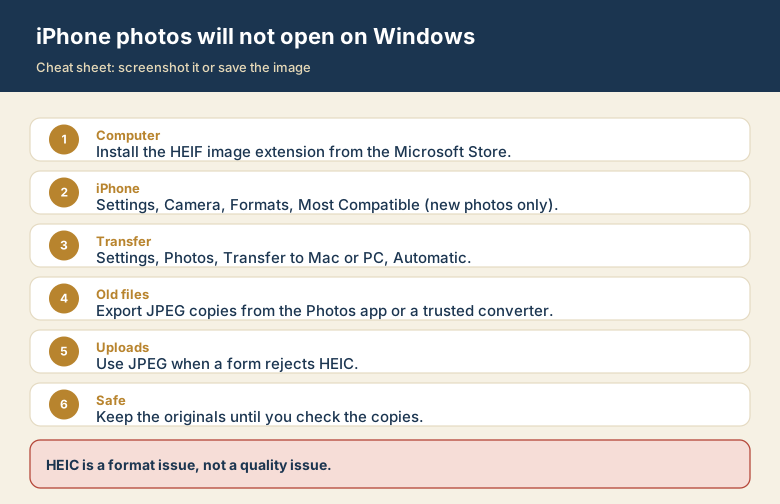
Screenshot this or save the image. It is the short version of the whole guide, and it is easier to find in a hurry than a web page.