You know you should not reuse passwords, but you have fifty accounts and a limited memory. So you add a number to the end, or you reuse the same one. This is the habit that turns a leak at a small website into a problem for your email and bank. A password manager solves it, and you can set it up in about twenty minutes.
Why reuse is the problem
When a website is breached, attackers take the leaked email and password pairs and try them on other sites. This is called credential stuffing. If your password is the same everywhere, one leak opens many doors. A long, unique password for every account stops that spread.
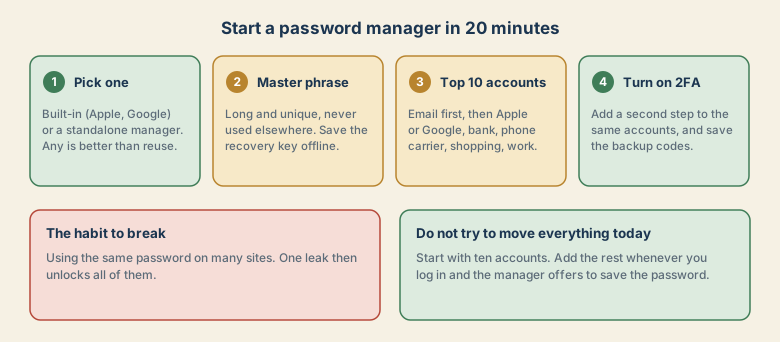
Step 1: Pick one
Choose a manager and stick with it. Options include the built-in managers from Apple and Google, and standalone managers that work on many devices. Compare ease of use and device support rather than looking for a perfect one. Any manager is better than reusing passwords.
Step 2: Set a strong master passphrase
The manager is protected by one password you must remember. Make it:
- Long, for example four or five unrelated words.
- Unique, never used anywhere else.
- Recoverable, because many managers cannot reset it for you. Write the recovery key on paper and keep it in a safe place, away from your computer.
Step 3: Move your ten most important accounts
Do not try to move everything. Start with the accounts that cause the most damage if lost:
- Your main email. Password resets for everything else arrive here.
- Apple ID or Google account.
- Bank and payment accounts.
- Phone carrier. Attackers can take over your number.
- Shopping and delivery accounts with stored cards.
- Work accounts, if allowed by your employer.
- Social media.
- Cloud storage.
- Password manager account itself.
- Anything else you would hate to lose.
For each, open the account's settings, use the manager to generate a new long password, and save it. Do this one account at a time.
Step 4: Turn on two-factor sign-in
Add a second step to the same ten accounts, and save the backup codes. If you use an authenticator app, read how to avoid a lockout when you change phones before you switch devices.
Make it a habit
- When a site asks you to create a password, let the manager generate it.
- When you log in to an old account, let the manager offer to save or update the password.
- Check the manager's report for reused or weak passwords occasionally, and fix them gradually.
- Never tell anyone your master passphrase or a one-time code.
What if you share accounts?
For a streaming service or household account, use the manager's sharing feature if it has one, rather than texting passwords. Sharing in a message keeps the password in many places.
What a password manager protects you from (and what it does not)
It protects you from password reuse, from weak or guessable passwords, and from typing credentials into a fake site, because the manager fills a password only on the matching address. It does not protect you if you give your master passphrase away, if malware controls your device, or if you approve a sign-in you did not start. It is one part of a safe setup, together with two-factor sign-in and software updates.
A good master passphrase
- Four or five unrelated words are easier to remember than a short complex password and much harder to guess.
- Do not use song lyrics, quotes, your name, a birthday, or anything on social media.
- Do not reuse it anywhere else.
- Do not store it in a notes app, a photo, or an email. Write the recovery key on paper and keep it somewhere safe.
Common worries, answered
- "What if the company is hacked?" Reputable managers store your data encrypted, so a thief gets scrambled data. A major manager has had a data theft in the past, which is exactly why a long, unique master passphrase matters.
- "Is the browser's built-in manager enough?" It is a good start and much better than reuse. A standalone manager helps if you use several browsers or device types.
- "What if I lose my phone?" Your vault is protected by the master passphrase and, ideally, two-factor sign-in. Keep a recovery key on paper.
- "What if I forget the master passphrase?" Many managers cannot reset it for you, by design. This is why the paper recovery key matters.
Common mistakes
- A weak or reused master passphrase.
- No recovery plan.
- Saving the master passphrase in the same place as the vault.
- Skipping two-factor sign-in on the manager and on the email account.
- Sharing passwords in chat messages instead of using the manager's sharing feature.
- Waiting to "do it properly". An imperfect start with ten accounts beats perfection that never happens.
The next step: passkeys
Passkeys let you sign in with your device's unlock method, such as a fingerprint or face scan, instead of a typed password. They resist phishing because they only work on the real site. Many large services support them. Where you can, add a passkey to your most important accounts, and keep the password manager for everything else.
A quarterly ten-minute check
- Open the manager's security report and fix reused or weak passwords on your most important accounts.
- Review which accounts still use SMS and move them to an authenticator app, passkey, or security key.
- Check that your recovery email and phone number are current.
- Confirm the paper recovery key is where you left it.
Quick checklist
- Pick one manager and install it on your phone and computer.
- Set a long master passphrase and store the recovery key on paper.
- Move your ten most important accounts, email first.
- Turn on two-factor sign-in, and save backup codes.
- Add the rest over time.
Save this cheat sheet
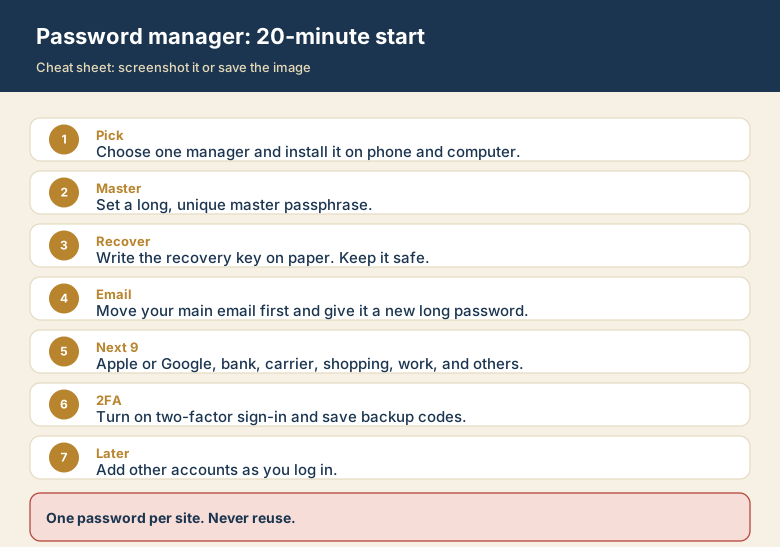
Screenshot this or save the image. It is the short version of the whole guide, and it is easier to find in a hurry than a web page.