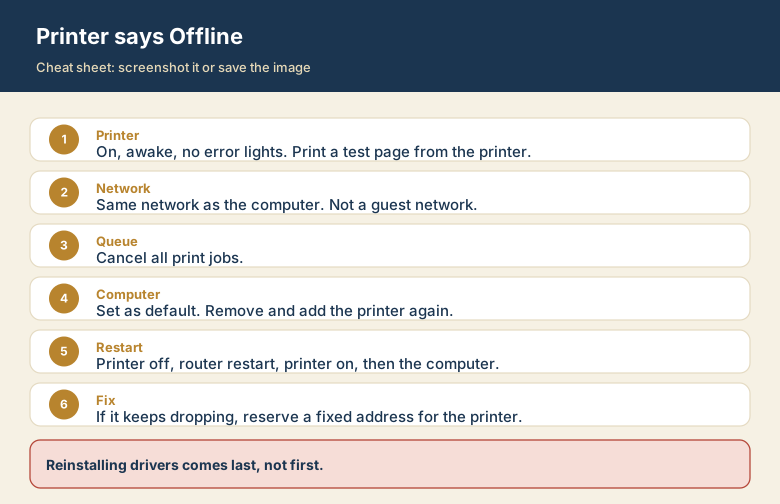
You press Print, and the computer says Offline. The printer is on, its lights are normal, and the paper is loaded. Offline here is the computer's opinion, not the printer's. Something between the two has broken, so you fix it by checking the chain from the printer outward.
What "offline" really means
Your computer sends print jobs over the network (or a cable) to the printer. It marks the printer Offline when it cannot reach it, or when the print queue is stuck. The common reasons are:
- The printer is asleep or has an error.
- The computer and printer are on different networks.
- A stuck job blocks the queue.
- The printer got a new network address after a restart, and the computer is still looking at the old one.
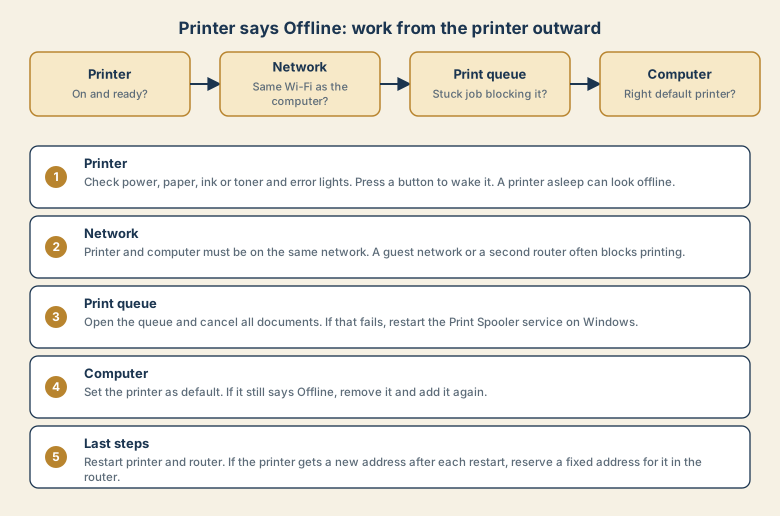
1. Check the printer itself
- Is it on, and are there error lights, a paper jam, or a missing ink or toner warning?
- Press a button or touch the screen to wake it. A printer in deep sleep can look offline.
- Print a test page from the printer's own menu. If that works, the printer is healthy.
2. Check the network
- The printer and the computer must be on the same network. A guest network, a second router, or a different network name will often block printing.
- If the printer shows a Wi-Fi symbol, check that it is connected to your usual network and not to a setup network.
- If you use a USB cable, try another port and another cable.
3. Clear the print queue
A stuck job can make the printer look offline even when everything else is fine.
- Windows: Settings, Bluetooth and devices, Printers and scanners, choose the printer, then Open print queue. In the Printer menu, choose Cancel all documents.
- Mac: System Settings, Printers and Scanners, open the printer's queue, and delete the waiting jobs.
- If a Windows job will not cancel, open Services, find Print Spooler, restart it, and try again.
4. Check the computer's settings
- Set the printer as default so the computer is not sending jobs to an old printer entry.
- On Windows, make sure the option to use the printer offline is not ticked in the print queue's Printer menu.
- If it still shows Offline, remove the printer and add it again. Windows: Printers and scanners, Remove, then Add device. Mac: select the printer, press the minus button, then the plus button to add it.
5. Restart in the right order
- Turn off the printer.
- Restart the router, wait until its lights settle.
- Turn the printer on and wait for it to join the network.
- Restart the computer, then print a test page.
If it keeps going offline
If the printer works after a restart but goes offline again later, its network address may be changing. Routers hand out addresses automatically, and the printer may receive a different one after each restart. In the router's settings, look for address reservation (sometimes called static DHCP) and reserve a fixed address for the printer. Then re-add the printer using that address.
Why printers go offline so often
A printer is one of the few devices that has to stay reachable on your network all day while sleeping most of the time. Many connect over Wi-Fi, ask the router for an address, and often get a different address after a restart. When the computer remembers the old address, it cannot find the printer and marks it Offline. That is why the same printer can work one day and fail the next without anything being broken.
USB, Wi-Fi, or Ethernet: which is most reliable?
| Connection | Reliability | Notes |
|---|---|---|
| USB cable to one computer | Very high | Only one computer can use it directly |
| Ethernet cable to the router | High | Stable address and signal, if the printer has a port |
| Wi-Fi | Medium | Convenient but depends on signal, router, and address |
If your printer offers a wired connection and the router is nearby, Ethernet is often the most reliable choice for a shared printer.
Common mistakes
- Reinstalling drivers first. The cause is usually the network, the queue, or the address.
- Adding the printer again and again, so there are several copies and jobs go to the wrong one. Remove duplicates.
- Printing to a printer on a guest network.
- Switching the printer off at the wall mid-job, which can leave a stuck job.
- Ignoring error lights such as a paper jam or a missing ink warning.
When the phone prints but the laptop does not
This points to the computer, not the printer. Check the default printer, the print queue, and whether the computer has a stale entry for the printer. Remove the printer from the computer and add it again, ideally using its current address.