You saved a file on your laptop and it is not on your phone. A cloud folder shows a spinning arrow that never stops. A colleague says they cannot see your changes. Sync problems are annoying, and they can be risky, because people try random fixes and delete things. The better approach is to read what the app says, then check in order.
What sync does, in one minute
A sync app watches a folder and copies changes to the cloud and to your other devices. It works only while certain things are true: you are signed in, the account has space, the computer is online, sync is not paused, and every file can be handled. When one of those fails, sync stops, and often only for some files.
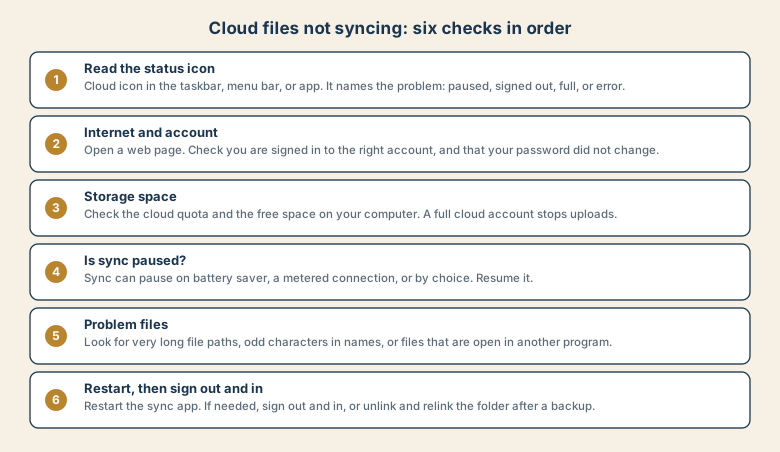
The six checks
1. Read the status icon
Look for the sync icon in the taskbar, the menu bar, or the app. Hover over or click it. It usually says what is wrong: paused, signed out, storage full, or error on a file. This one step often solves the problem.
2. Check the internet and the account
- Open a web page to confirm you are online.
- Check that you are signed in to the right account, especially if you have a work account and a personal one.
- If you changed your password recently, sign in again. Old sessions may have expired.
3. Check storage space
- Cloud space: open the service on the web and check the total usage. Mail, photos, and other services can share the same quota.
- Computer space: if the disk is nearly full, downloads fail. Free some space. See the guide on freeing up phone storage for the same logic on a phone.
4. Check whether sync is paused
Sync may be paused by choice, by battery saver, or on a metered connection. Look for a Resume option in the app's menu.
5. Look for problem files
If most files sync but a few do not, the cause is usually in the file.
- Very long file paths, such as deep folders inside folders.
- Unsupported characters in names, such as slashes, colons, or symbols the service dislikes.
- Files open in another program, which can lock them.
- Very large files, which may exceed limits or take a long time.
- Temporary or system files that the service skips.
Rename the file with a shorter, simpler name, close the program that has it open, and move it up a few folder levels.
6. Restart, then sign out and in
- Quit and reopen the sync app, or restart the computer.
- Sign out and sign back in.
- As a last step, unlink and relink the folder after a backup. Be careful, because re-syncing a large folder can take a long time.
What about conflict copies?
If a file is edited in two places before sync, the service keeps both versions. You will see copies with a device name or "conflict" in the name. Open both, keep the right one, and delete the other. This is normal behaviour, not a failure.
Common mistakes
- Deleting files to "fix" the sync. Deletions sync too.
- Signing in to the wrong account and wondering where the files went.
- Ignoring a full cloud account until uploads quietly stop.
- Treating sync as backup. See sync is not a backup.
- Moving a synced folder around without letting the app know.
- Editing the same file on two devices at once.
Make sync reliable
- Keep folder names short and simple.
- Watch your storage and clean up before the account fills.
- Close files before you leave a shared document.
- Check the sync icon occasionally, especially after changing a password.
- Keep a separate backup and test restoring one file.
If it still fails
Note what the status icon says, which files fail, and when it started. Take a screenshot of any error. Check the service's status page in case it is a service-wide outage, and contact support with those facts. For a work account, tell your IT team, who can see the service settings.
Quirks of the main services
Each service handles files a little differently, which can look like a failure.
- OneDrive can keep some files online-only to save space. They appear in the folder with a cloud icon and download when you open them. If you are offline, they will not open. Choose to keep files on the device if you need them offline.
- iCloud Drive can optimise storage on a Mac, which removes local copies of older files and keeps them in iCloud. Files may look missing until they download.
- Google Drive for desktop can either stream files, showing them on demand, or mirror them, keeping full local copies. The setting changes how much space it uses and what works offline.
- Shared folders can have different owners and limits. A file that is shared with you may not count the way your own files do.
If a file looks missing, check whether it is online-only before you assume it is gone.
Changing a password or device
Changing your password, getting a new computer, or switching phones often signs the sync app out. After any of these, open the app and sign in again, and check the status icon.
Quick checklist
- Read the status icon.
- Confirm internet and the right account.
- Check cloud and computer storage.
- Resume sync if paused.
- Fix problem files, then restart or sign in again.
Save this cheat sheet
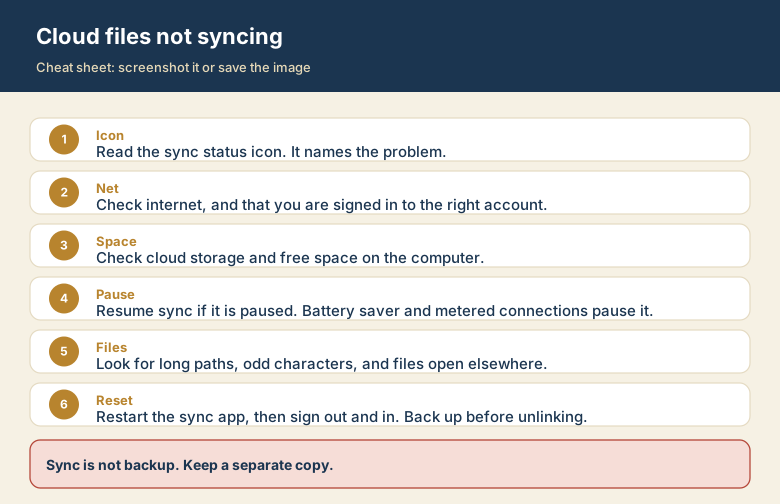
Screenshot this or save the image. It is the short version of the guide, and it is easier to find in a hurry than a web page.