You plug in a second monitor and nothing appears. The monitor says No Signal, or the computer acts as if there is only one screen. The cause is almost always somewhere along the signal path, and you can find it by checking each link.
The signal path
A picture travels from the computer through a port and a cable to the monitor, and each link can fail.
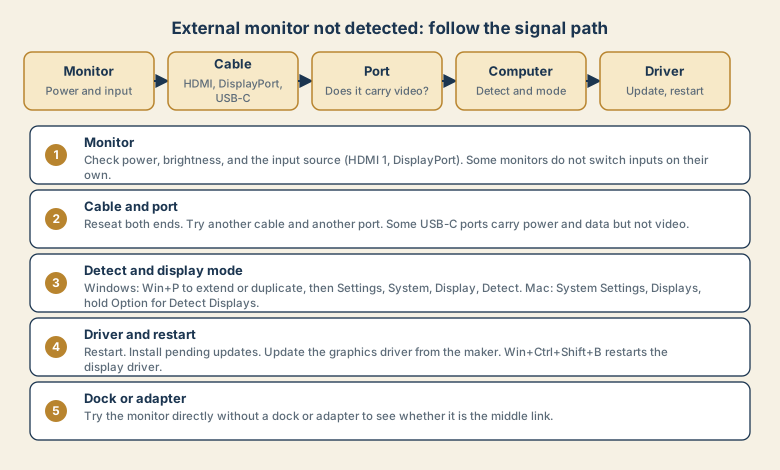
- The monitor: power, brightness, and the input source it listens to.
- The cable: HDMI, DisplayPort, or USB-C, and whether it is firmly seated.
- The port: whether it carries video.
- The computer's settings: whether it detects the display and uses it.
- The driver: the software that controls the graphics.
1. The monitor
- Power: is the monitor on, and is its light lit?
- Input source: open the monitor's menu and select the input that matches your cable, such as HDMI 1 or DisplayPort. Some monitors do not switch inputs on their own.
- Reset the monitor: a power cycle, or a factory reset in its menu, can clear odd states.
2. The cable and the port
- Reseat both ends. A loose connector is a frequent cause.
- Try another cable. Cables fail, and some cheap ones do not support high resolutions.
- Try another port on the computer and the monitor.
- Check that the cable type fits your needs. A very old cable may limit resolution or refresh rate.
The USB-C trap
Many laptops have USB-C ports that look identical, but only some can output video (often marked with a DisplayPort or Thunderbolt symbol). A port that charges and transfers data may not drive a monitor at all. Check the laptop's specifications or the symbols next to the port, and use a cable made for video.
3. The display settings
- Windows: press Win+P and choose Extend or Duplicate. Then open Settings, System, Display and use Detect if the monitor is not listed.
- Mac: open System Settings, Displays. Hold the Option key to reveal a Detect Displays button in versions that offer it. Make sure the display is not set to mirror a different one.
Also check that the monitor is not simply off to one side. In extended mode, drag the mouse to the edge of the screen to see whether the pointer moves onto the second display.
4. The driver and a restart
- Restart the computer, with the monitor connected.
- Install pending updates for the operating system.
- Update the graphics driver from the maker of your graphics hardware or your laptop.
- On Windows, press Win+Ctrl+Shift+B to restart the display driver. The screen may flicker.
- Check sleep and power settings. A display that goes to sleep and does not wake can look undetected.
5. Docks and adapters
Docks, hubs, and adapters add a link that can fail, and they may limit the resolution or the number of screens.
- Connect the monitor directly without the dock or adapter.
- Update the dock's driver or firmware if it has one.
- Check the dock's specifications for how many monitors and what resolution it supports.
- Try a different adapter, if you must use one.
Common mistakes
- Assuming every USB-C port carries video.
- Forgetting to set the monitor's input source.
- Using a damaged or very cheap cable.
- Skipping the direct connection test when a dock is involved.
- Changing many settings at once and losing track of what worked.
- Setting a resolution the monitor cannot show, which gives a blank screen. Boot into safe settings or connect another screen to fix it.
If the picture is blurry or wrong
- Choose the monitor's recommended resolution in the display settings.
- Check the scaling setting, which makes text bigger or smaller.
- Match the refresh rate the monitor supports.
- Use a cable and port that support the resolution you want.
- For text, a monitor connected at its native resolution looks sharpest.
Make a reliable desk set-up
- Use a good cable and keep it short and untangled.
- Label ports that support video if you have several.
- Keep the graphics driver updated a few times a year.
- Write down which cable and port work, in case you change set-up.
- Keep a spare cable for testing.
If nothing works
Test the monitor with another computer, and test another monitor with your computer. If the monitor works elsewhere, the computer or its port is the issue. If another monitor also fails, check the port and the driver. Note the results, and share them with support, with your computer and monitor models.
Quick checklist
- Check monitor power and select the right input.
- Reseat the cable, and try another cable and port.
- Confirm that the USB-C port carries video.
- Detect the display, and choose Extend or Duplicate.
- Restart, update the driver, and try the monitor directly without a dock.
Save this cheat sheet
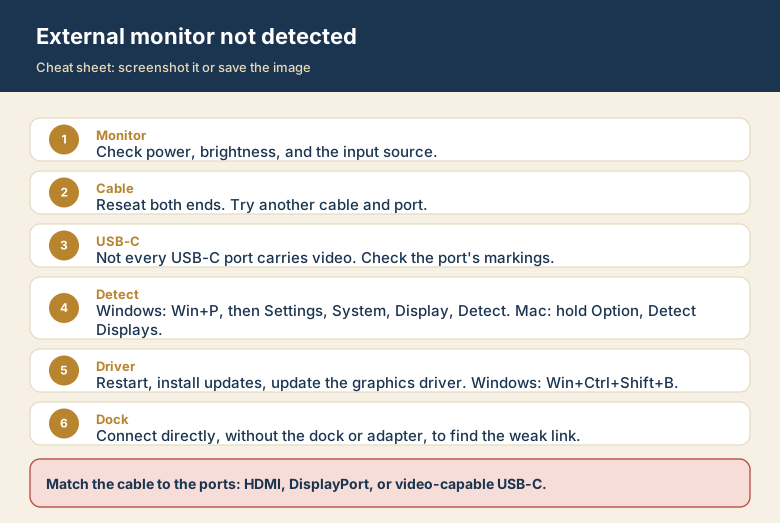
Screenshot this or save the image. It is the short version of the guide, and it is easier to find in a hurry than a web page.