You press the power button and nothing happens. Or the lights come on, the fan spins, and the screen stays black. It feels like a disaster, but it often is not. The trick is to ask a single question first, because the answer tells you which part of the laptop to suspect.
First question: any sign of life?
Look and listen for lights, fan noise, drive sounds, or a start-up chime.
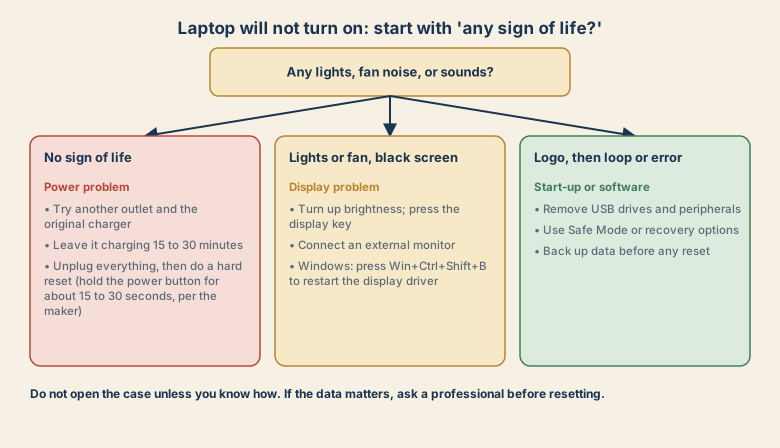
- No sign of life: a power problem. Charger, outlet, cable, or a drained battery.
- Lights or fan, but a black screen: a display problem.
- A logo, then a loop or an error screen: a start-up or software problem.
Why laptops stop starting
A laptop is a chain: wall outlet, charger, battery, motherboard, display. A break anywhere looks like "it will not turn on". The software side matters too. An interrupted update, a damaged system file, or a USB device can stop it from finishing start-up even when the hardware is fine.
Branch 1: no sign of life
- Test the outlet and the charger. Try another outlet, a different power strip, and the original charger. A charger with too little power may not run the laptop.
- Check the cable and the plug. Look for damage and make sure the plug is fully seated. Many chargers have a small light.
- Charge for 15 to 30 minutes before trying again. A battery that is completely drained can take a while to respond.
- Remove everything: USB drives, external drives, docks, and memory cards.
- Do a hard reset. Unplug the charger. If the battery is removable, take it out. Hold the power button for about 15 to 30 seconds, depending on the maker. Reconnect only the charger and try again.
Branch 2: lights or fan, but a black screen
- Brightness. Press the brightness-up key. Some laptops have a key to switch the display on and off.
- External monitor. Connect a monitor by HDMI or USB-C. If it shows a picture, the laptop is fine and the built-in display or its connection is the problem.
- Restart the display driver on Windows with Win+Ctrl+Shift+B. You may hear a beep, and the screen can flicker back.
- Shine a torch at the screen. A very faint image points to a backlight fault.
- Force a restart: hold the power button until it switches off, wait, then start again.
Branch 3: a logo, then a loop or an error
- Unplug USB devices and peripherals, then restart.
- Let it try again. Many systems attempt automatic repair after a few failed starts.
- Use the recovery options the system offers, such as Safe Mode or startup repair.
- Note the exact message. It makes searching for the cause far easier.
- If an update triggered it, the recovery screen may offer to uninstall the latest update.
Protect your data first
Before any reset, reinstall, or repair, think about the files. Back them up if the laptop will start at all, even in Safe Mode. If it will not, the drive often still holds your data, and a technician can copy it out. Do not format or reinstall until you have decided what matters.
Common mistakes
- Assuming the battery is dead when the charger or outlet is the problem.
- Using a different, underpowered charger.
- Pressing the power button repeatedly, which can interrupt a repair that is trying to run.
- Opening the laptop without knowing how, which can void a warranty and damage parts.
- Reinstalling the system first, and wiping the files you wanted.
- Charging a swollen or very hot battery. Stop, and get it serviced.
Keep it healthy
- Use the right charger and replace worn cables.
- Keep backups. See sync is not a backup.
- Install updates when you are not busy, with the laptop plugged in. See Windows update stuck.
- Restart regularly and do not leave it in a hot bag or on a soft bed that blocks the vents.
- Check battery health if the laptop shuts off at a high charge percentage.
What to tell a repair shop
Say what you saw, with facts: any lights or sounds, what you tried, when it started, and whether anything happened just before, such as an update, a drop, or water. Mention whether the data is backed up. It helps them diagnose faster and avoid unnecessary work.
Signs and what they often mean
| What you see | What it often means | First thing to try |
|---|---|---|
| Nothing at all, no lights | No power reaching the board | Another outlet, the original charger, charge 15 to 30 minutes, hard reset |
| Charging light flashes or an odd colour | A charging or battery fault | Check the maker's guide to the light, try another charger |
| Fan spins, screen black | Display or graphics issue | External monitor, brightness, restart the display driver |
| Beeps at start-up | A hardware check failed, such as memory | Check the maker's beep codes and reseat only if you know how |
| Logo, then a loop | Start-up or update problem | Remove USB devices, use recovery options |
| Screen shows lines or flickers | A screen or cable fault | Test with an external monitor and ask a technician |
Quick checklist
- Any lights, fan, or sounds? That picks the branch.
- No sign of life: outlet, original charger, charge 15 to 30 minutes, hard reset.
- Black screen with lights: brightness, external monitor, Win+Ctrl+Shift+B.
- Loop: remove USB devices, use recovery options.
- Back up before any reset, and do not open the case.
Save this cheat sheet
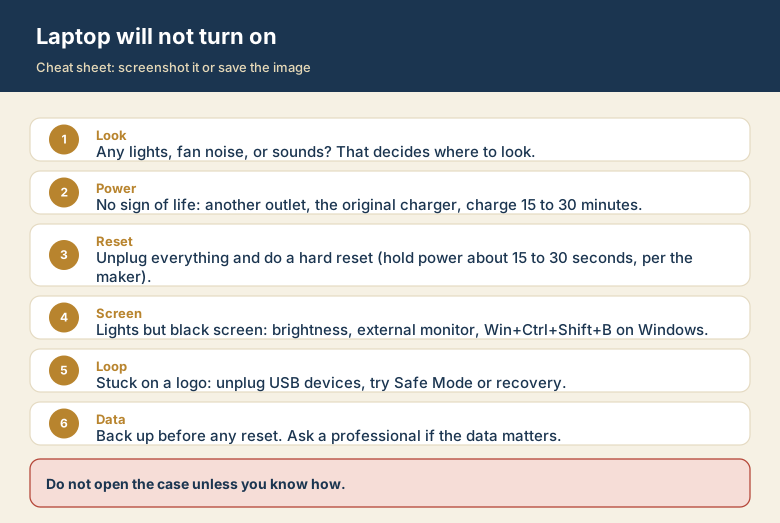
Screenshot this or save the image. It is the short version of the guide, and it is easier to find in a hurry than a web page.