The progress screen says 30 percent. An hour later it still says 30 percent. Or the update fails and Windows says it will try again. It is natural to panic and hold the power button. In most cases, patience and a short checklist fix it.
First: wait longer than feels natural
Windows updates do not progress smoothly. A number can sit still for a long time while the computer is working on something heavy in the background. If the drive light or the fan is active, it is probably still working.
- Give it time. For a large update, allow an hour or two before worrying.
- Keep the computer plugged in. Do not run it on a low battery.
- Avoid forcing a shutdown unless it has clearly stopped for hours.
The steps, in order
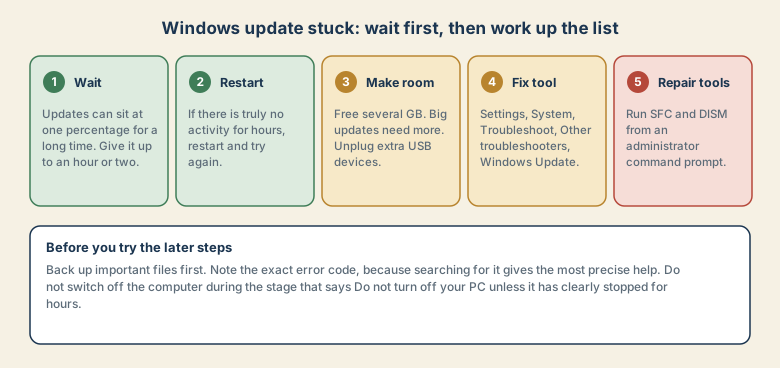
1. Wait, then restart if it is truly stuck
If there is no sign of activity for several hours, restart the computer. Windows will usually either finish or roll back the update. Then open Settings, Windows Update and try again.
2. Make room and unplug extras
- Free disk space. Monthly updates need several gigabytes, and big feature updates need more. Delete unneeded files, empty the recycle bin, and run Storage settings.
- Unplug non-essential devices, such as external drives, USB hubs, printers, and memory sticks, and try the update again.
- Disconnect from a VPN during the update if you use one.
3. Check the basics
- Date and time should be correct and set to automatic.
- Restart pending from an earlier install can block a new one. Restart first.
- Internet connection should be stable. A weak Wi-Fi link can cause failed downloads.
4. Run the built-in troubleshooter
Open Settings, System, Troubleshoot, Other troubleshooters and run the Windows Update troubleshooter. It resets some update components and often clears the problem. Menu names change between Windows versions, so look for the closest match.
5. Use the repair tools
If the earlier steps fail, use the system file tools. Back up important files first.
- Search for Command Prompt, right-click it, and choose Run as administrator.
- Run
sfc /scannowand wait for it to finish. - Run
DISM /Online /Cleanup-Image /RestoreHealthand wait for it to finish. - Restart and check for updates again.
These tools can take a while, and the progress may look stuck. Let them run.
If it still fails
- Write down the error code shown on screen or in Windows Update history, and search for it with your Windows version.
- Try Microsoft's own installation or update assistant, downloaded from Microsoft's official site, for feature updates.
- Download the specific update manually from Microsoft's update catalogue if one update repeatedly fails.
- Pause updates for a short time if you need the computer for work, and come back to it.
- Ask for help from your IT team if the computer is managed by an employer.
Why updates fail
- Low disk space.
- A device or driver conflict.
- A damaged or incomplete update download.
- Security software or a VPN interfering.
- An interrupted earlier update.
- A very old or unsupported system that cannot take the new version.
Common mistakes
- Holding the power button early. It can turn a delay into a repair job.
- Starting an update at a bad moment, such as before a meeting or with a low battery.
- Ignoring updates for months, so a huge pile of changes arrives at once.
- Using unofficial "fix" tools or downloads from unknown sites.
- Skipping a backup.
Make updates routine
Updates are easier when they are small and regular.
- Install updates when they appear, while you are not busy.
- Keep at least some free disk space.
- Keep important files backed up, so an update is never a risk to your work.
- Restart at least weekly so pending changes finish.
- Do not delay security updates for long.
What you are seeing, and what it means
| What you see | What is probably happening | What to do |
|---|---|---|
| A percentage that does not move for a long time | The computer is working on a heavy stage | Wait, keep it plugged in |
| "Undoing changes" or "Reverting" | The update failed and is rolling back | Let it finish, then free space and retry |
| An error code and "Try again" | A specific failure, often disk, driver, or file damage | Note the code, run the troubleshooter |
| Reboot loop | The update cannot finish a step | Let it try a few times, then use recovery options or ask for help |
| Windows Update button greyed out | A policy or pending restart | Restart; if the computer is managed, ask IT |
How to protect yourself before a big update
- Back up your files to an external drive or a separate cloud service, not only a sync folder.
- Plug in the power.
- Close programs and save work.
- Check free space in Storage settings.
- Pick a quiet time. A major update can take a while, and you do not want to be waiting for it before a deadline.
Quick checklist
- Wait. Keep it plugged in. Do not force a shutdown early.
- Restart if there is truly no activity for hours.
- Free disk space and unplug extra devices.
- Run the Windows Update troubleshooter.
- If needed, run SFC and DISM, after backing up your files.
Save this cheat sheet
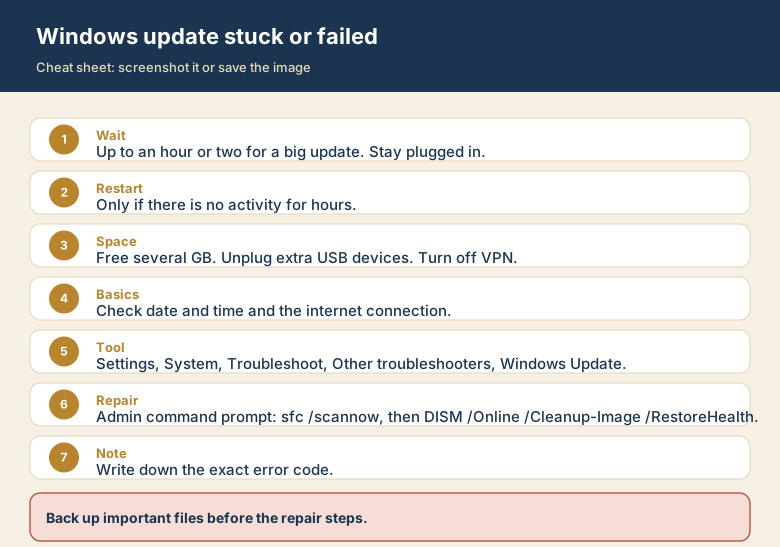
Screenshot this or save the image. It is the short version of the guide, and it is easier to find in a hurry than a web page.