You click a link and a red or grey page appears: Your connection is not private. It can feel alarming, and in some cases it is a real warning. But very often the cause is something small on your side. The skill is to read the warning, find the cause, and know when to stop.
What the warning means
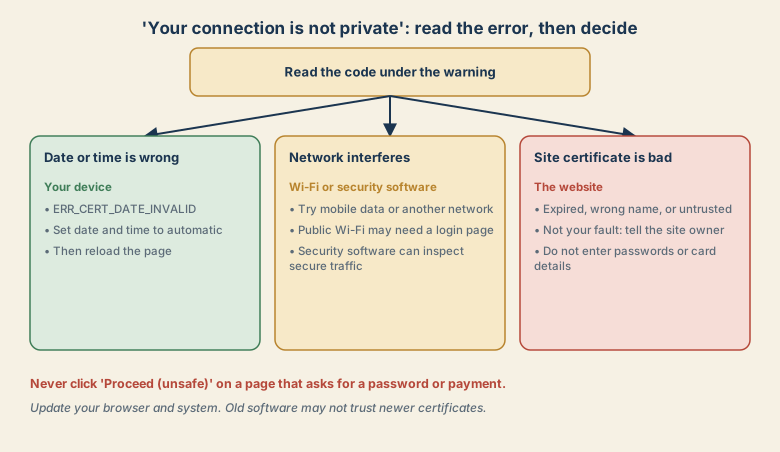
When you open a secure site, your browser checks a digital certificate that proves the site is who it claims to be, and that nobody can read the traffic in between. If that check fails, the browser warns you. The failure can come from three places:
- Your device: the date or time is wrong, or the software is out of date.
- Your network: a public Wi-Fi sign-in page, a school or office network, or a tool that inspects secure traffic.
- The website: an expired certificate, a certificate for the wrong name, or one from an untrusted issuer.
Step 1: Read the code
Under the warning, the browser shows a code. It tells you the reason.
| Code (Chrome style) | What it often means | Where to look |
|---|---|---|
| ERR_CERT_DATE_INVALID | The certificate looks expired or not yet valid | Your date and time, or the site's renewal |
| ERR_CERT_AUTHORITY_INVALID | The issuer is not trusted | A network that inspects traffic, a self-made certificate, or old software |
| ERR_CERT_COMMON_NAME_INVALID | The certificate does not match the site name | A wrong address, or a site set-up error |
| ERR_CERT_REVOKED | The certificate was cancelled | The site; wait or contact the owner |
Firefox and Safari word it differently, such as "Warning: Potential Security Risk Ahead" or "This Connection Is Not Private", but the same causes apply.
Step 2: Fix your clock
A wrong date or time is the single most common cause. A certificate is valid only between two dates, so a device that thinks it is a different year makes valid certificates look expired.
- Windows: Settings, Time and language, Date and time, and turn on Set time automatically.
- Mac: System Settings, General, Date and Time, and set it to update automatically.
- Phone: turn on automatic date and time in the settings.
Reload the page. If the warning is gone, that was the cause. A drained or replaced battery on an old computer can reset the clock, so check it after a long shutdown.
Step 3: Try another network
If only one network shows the warning, the network is the problem.
- Public Wi-Fi: hotels, cafes, and airports often need you to open a sign-in page before secure sites work. Open a plain
http://page, such ashttp://neverssl.com, to trigger it. - Switch to mobile data and reload. If the warning disappears, the first network was interfering.
- Work or school networks may inspect secure traffic with their own certificate. Ask your IT team if you see the warning there.
Step 4: Update and try a clean start
- Update the browser and the operating system. Old software may not trust newer certificate issuers.
- Try a private or incognito window, or another browser. This shows whether an extension or saved data is interfering.
- Check security software that scans secure connections. It can cause the warning on many sites. Check its settings rather than switching it off.
- Restart the device, and try again.
When it really is the site
If the warning appears on one site, on every device and network, the site has a problem. It may have forgotten to renew a certificate, or it uses a certificate for a different name. This is not your fault, and there is little to fix on your side.
- Do not enter passwords or card details while the warning shows.
- Tell the site owner through another channel, such as email or social media.
- Come back later, since owners usually fix it quickly.
- Check that you typed the right address. A lookalike address is a classic phishing trick. If you got to the site from a message, see what to do if you clicked a phishing link.
If it is your own website
Visitors seeing this on your site is a sign to act.
- Check the certificate's expiry date and renew it.
- Make sure it covers every name you use, such as
example.comandwww.example.com. - Install the full certificate chain, not only your own certificate.
- Turn on automatic renewal so it does not lapse.
- Test from another network and device, and with an online certificate checker.
- Set a reminder a few weeks before expiry, in case automation fails.
Common mistakes
- Clicking Proceed on a page that asks for a password.
- Ignoring a wrong clock and chasing other causes.
- Switching off all security software to make the warning go away.
- Using public Wi-Fi for banking while the warning shows.
- Assuming the site is hacked when the cause is local.
A 30-second check habit
- Look at the address to be sure it is the site you meant.
- Look at the code under the warning.
- Check the clock, then try mobile data.
- If it still shows, stop and tell the owner.
Quick checklist
- Read the error code.
- Set date and time to automatic.
- Try mobile data or another network, and open a plain http page on public Wi-Fi.
- Update the browser and system.
- Never proceed on pages that ask for passwords or payments.
Save this cheat sheet
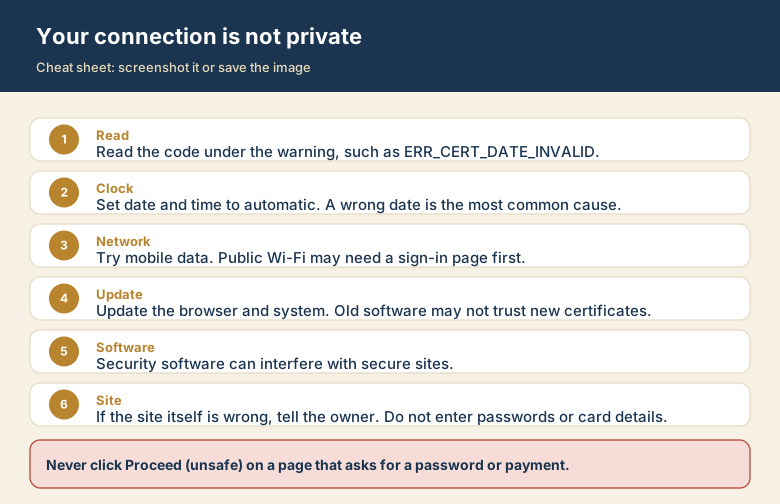
Screenshot this or save the image. It is the short version of the guide, and it is easier to find in a hurry than a web page.