Ten minutes before the meeting, you join and the camera tile is black, or it says no camera found. This is one of the most common call problems, and it is usually quick to solve once you follow the path the picture takes, from the lens to the app.
Split the problem first
Open your computer's own camera app, or a simple online camera test.
- A picture appears: the camera works. The problem is the call app, the browser, or its permission.
- No picture: the problem is the camera, a shutter, a permission, or a driver.
This one test saves a lot of guessing.
The path from lens to app
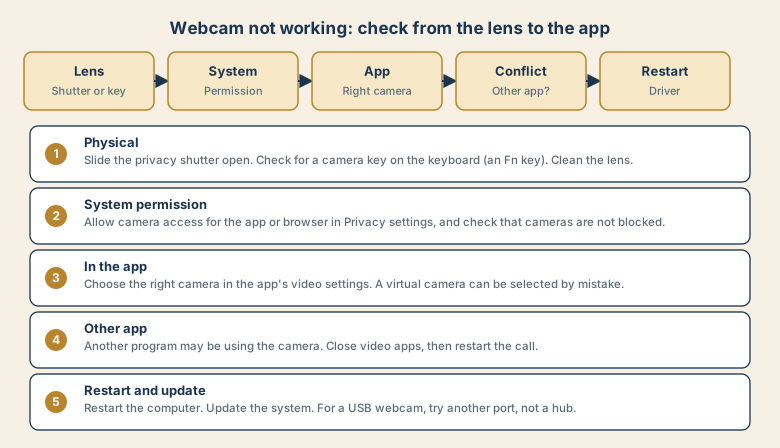
1. The physical side
- Slide the privacy shutter open. Many laptops and monitors have one.
- Look for a camera key on the keyboard, often an Fn combination that switches the camera on and off.
- Clean the lens. A smudge can make the image look dark or blurred.
- Check the cable on an external webcam.
2. System permission
Computers let you block camera access, and some security settings block it for all apps.
- Windows: Settings, Privacy and security, Camera. Make sure access is on, and that the app is allowed.
- Mac: System Settings, Privacy and Security, Camera. Switch on the app or browser.
- Browser: click the lock or camera icon next to the address and allow the camera for that site. Reload the page.
3. The right camera in the app
Apps can choose a camera different from the one you expect. Open the call app's video settings and pick your camera from the list. Beware of virtual cameras from other software, which can be selected by mistake and show a blank image.
4. Another app may be using it
Some programs hold the camera. A previous call, a screen recorder, or a browser tab can keep it busy. Close video apps and tabs that may be using the camera, then restart the call.
5. Restart and update
- Restart the computer. This clears stuck camera processes.
- Install pending updates for the system and the call app.
- On Windows, open Device Manager and check the camera appears without a warning icon.
- For a USB webcam, use a different port directly on the computer, not a hub.
Why it fails right after an update
Updates sometimes reset privacy settings or replace a driver. If the camera disappeared after an update, check permissions again, restart, and look for a further update. Search for the exact message together with your model if it persists.
Make your picture look better
- Put light in front of you, such as a lamp behind the screen. A bright window behind you makes you look dark.
- Raise the camera to eye level.
- Use a background blur if your room is messy.
- Check your network. A weak connection lowers the video quality. See Wi-Fi connected but no internet if the call itself is failing.
Common mistakes
- Fixing the call app when the camera is blocked in the system.
- Forgetting the privacy shutter.
- Using a hub for a USB webcam that needs steady power.
- Selecting a virtual camera left over from another tool.
- Waiting until the meeting starts to test.
A 60-second pre-call habit
- Open the call app's video settings.
- Check your picture and the camera chosen.
- Check your light and your background.
- Close apps you do not need.
- Test audio too. See no sound on Zoom or Teams.
If nothing works
Join from your phone as a backup, or from the browser version of the call. Then note what you saw: the message, whether the system camera app works, and what changed. If it is a work laptop, tell your IT team, because a policy may be blocking the camera.
Privacy: do not just disable everything
If you block the camera everywhere to feel safe, you will fight with it later. A better approach:
- Use the privacy shutter or a small cover when you are not on a call.
- Allow the camera only for the apps and sites you trust, and review the list now and then.
- Look for the indicator light or on-screen indicator that shows when the camera is on. If it is on when you are not on a call, close apps and check which one is using it.
- Be careful with unknown software that asks for camera access.
If you are choosing an external webcam
- Check it works with your system and the apps you use.
- Consider a model with a privacy shutter.
- Look at the light handling. A good sensor matters more than a high resolution number in a dim room.
- Use a direct USB port, or the right powered hub, for stable power.
- A phone can often act as a webcam if the camera on the laptop is poor. Check the apps and system features you have.
Quick checklist
- Test the system camera app to split hardware from software.
- Open the shutter, check the camera key, clean the lens.
- Allow the camera for the app or browser in privacy settings.
- Choose the right camera inside the call app.
- Close other apps, restart, update, and try another USB port.
Save this cheat sheet
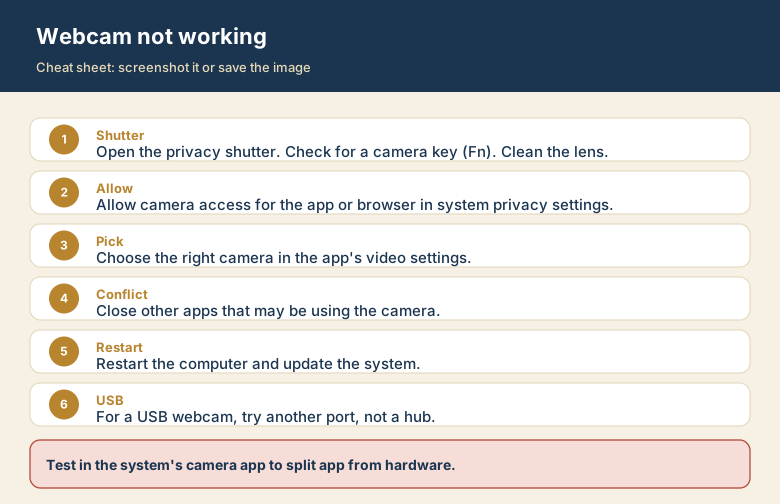
Screenshot this or save the image. It is the short version of the guide, and it is easier to find in a hurry than a web page.