You type a password and it is rejected. You press the quote mark and get an at sign. Half the letters turn into numbers. The first thought is a broken keyboard, but this is usually a setting, not a fault. A few quick checks will find it.
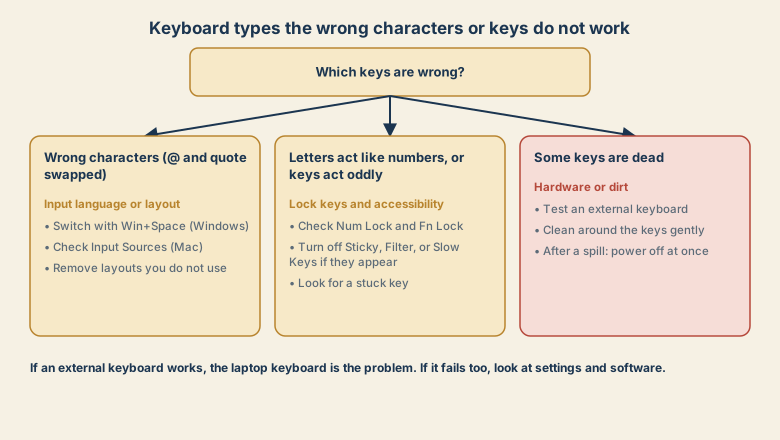
Which kind of problem is it?
Look at what goes wrong.
- The wrong characters appear, such as @ and the quote mark swapped, or the pound sign where you expect a hash.
- Keys act oddly, such as letters typing numbers, or keys repeating or ignoring presses.
- Some keys are dead.
Wrong characters: the input language or layout
A keyboard layout tells the computer which character each key makes. If it does not match the printed keys, the output is wrong. This often happens after a system update, after adding a second language, or when someone presses a shortcut by accident.
- Windows: press Win+Space to switch between layouts, or Alt+Shift on some setups. Open Settings, Time and language, Language and region, and check which keyboard layouts are installed. Remove ones you do not use.
- Mac: open System Settings, Keyboard, and check Input Sources. Use the input menu in the menu bar to switch.
- Phone or tablet: check the keyboard language settings.
The classic sign is the @ and quote marks swapped, which happens when a computer set to a UK layout is used with a US keyboard, or the other way round. Pick the layout that matches the printed keys.
Odd behaviour: lock keys and accessibility features
- Num Lock and Fn Lock. Laptops without a separate number pad often put numbers on the letter keys, and a lock switches them on. Check the lock lights, and press the lock key again.
- Sticky Keys. Pressing Shift five times can switch it on, so that modifier keys stay "pressed". Turn it off in the accessibility settings.
- Filter Keys or Slow Keys. They ignore brief or repeated presses and can make keys seem dead or slow.
- Key repeat rate. If keys repeat too much or too little, adjust it in the keyboard settings.
- Function keys. If F-keys do volume and brightness instead of the function, or the reverse, switch the Fn Lock.
Dead keys: hardware or dirt
- Test in more than one app, such as a notes app and the browser. If only one app misbehaves, the cause is that app.
- Plug in an external keyboard. If it works, the laptop keyboard is the problem. If it fails too, look at the settings and software.
- Restart the computer. This clears many odd states.
- Look for a stuck key or debris. Turn the laptop upside down and tap it gently. Use a soft brush or short bursts of compressed air at the keys.
- Check for a loose key cap, which can be pressed back into place on many keyboards.
After a spill
A spill needs quick action.
- Switch the laptop off immediately and unplug it.
- Turn it upside down to let liquid out.
- Do not charge or restart it until it is fully dry, which can take a day or more.
- Ask a technician to check it. Liquid can leave residue that damages the board over time, even when the laptop seems to recover.
Wireless keyboards
- Replace or charge the battery. A weak battery gives missed keys and lag.
- Check the receiver, and plug it directly into the computer, not a hub.
- Pair again if it uses Bluetooth. See Bluetooth headphones will not connect for the same re-pairing logic.
- Move closer, and away from other wireless devices that cause interference.
Software and drivers
- Install pending updates for the system. Keyboard bugs are sometimes fixed in updates.
- Check Device Manager on Windows for a warning next to the keyboard.
- Try Safe Mode. If the keyboard works there, a program or driver is the cause.
- Check for software that remaps keys, such as gaming tools, language tools, and remote-access apps.
Common mistakes
- Assuming the keyboard is broken before checking the layout.
- Leaving several layouts installed, so a shortcut switches by accident.
- Typing a password repeatedly with the wrong layout, which can lock an account.
- Cleaning with liquids, which can do more harm than dust.
- Forgetting to power off before cleaning or after a spill.
Make it reliable
- Keep only the layouts you use.
- Learn the switching shortcut, so you can fix it in a second.
- Check the lock lights when letters behave oddly.
- Keep drinks away from the keyboard.
- Keep a spare external keyboard for testing.
If it is the hardware
A dead key or a few failed keys on a laptop may need a keyboard replacement, which is often possible. Use the maker's service or an authorised repairer. Meanwhile, an external keyboard lets you keep working.
Quick checklist
- Wrong characters: switch the input language or layout.
- Odd letters or numbers: check Num Lock, Fn Lock, and accessibility features.
- Test an external keyboard to split hardware from settings.
- Clean gently, and after a spill power off at once.
- Restart, update, and try Safe Mode if it persists.
Save this cheat sheet
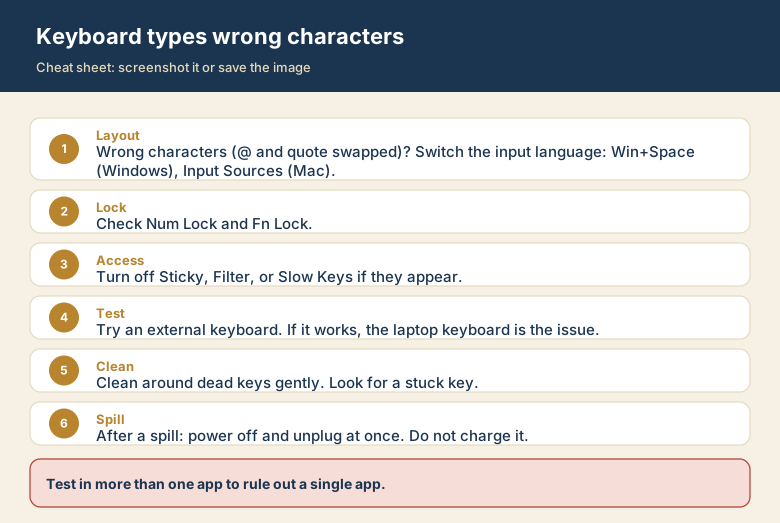
Screenshot this or save the image. It is the short version of the guide, and it is easier to find in a hurry than a web page.