You sit down, type your password, and Windows rejects it. You try again, and again. Now you are locked out of your own computer. It is stressful, but the answer depends on one thing: what kind of account you are using. Figure that out first, and the right path becomes clear.
First, which kind of account is it?
- A Microsoft account: you sign in with an email address, and the same account works on other Microsoft services.
- A PIN or Windows Hello: you sign in with a short number, a fingerprint, or a face scan, which is linked to your account.
- A local account: you sign in with a name that exists only on this PC, with no email address.
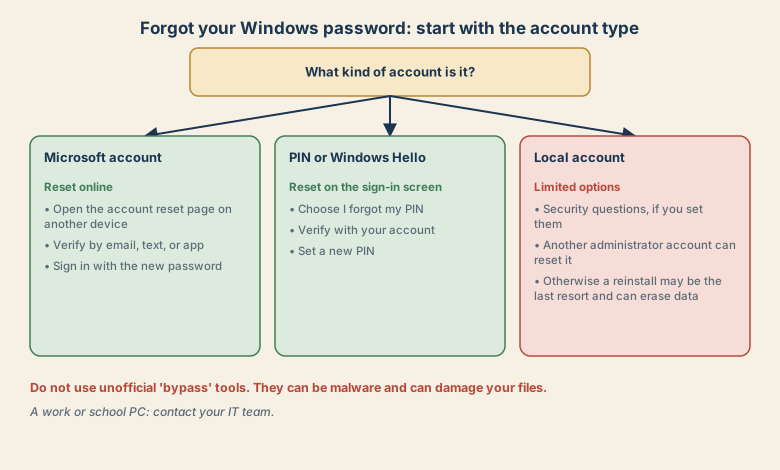
If you are not sure, look at the sign-in screen. If it shows an email address, it is almost certainly a Microsoft account.
A Microsoft account
This is the easiest case.
- From another device, open Microsoft's official account recovery page, or choose I forgot my password on the sign-in screen.
- Verify your identity with a code sent to your email or phone, or an authenticator app.
- Set a new password.
- Connect the locked PC to the internet if needed, and sign in with the new password. The PC may need to connect to the internet to accept it.
If you cannot receive the code, because your recovery email or number is old, use the account's recovery form. It asks questions to prove you are the owner. Answer accurately, and be patient, because it can take days.
A forgotten PIN or Windows Hello
On the sign-in screen, choose I forgot my PIN. Verify with your account, and set a new PIN. This does not erase your files. If you use a fingerprint or face scan, you can still sign in with your account password, then set the biometric sign-in up again.
A local account
Options are more limited, because there is no online account to verify you.
- Security questions: if you set them, a Reset password link appears after a failed sign-in. Answer the questions to set a new password.
- Another administrator account: if the PC has another account with administrator rights, sign in with it and reset the password from the account settings.
- A password reset disk, if you made one earlier.
If none of these apply, the last resort may be resetting or reinstalling Windows. This can erase your files, so think carefully. If the data matters, ask a professional about recovery first.
BitLocker and the recovery key
Some PCs encrypt the drive with BitLocker. After certain changes, Windows may ask for a recovery key.
- If you use a Microsoft account, the key is often saved in your Microsoft account under your devices.
- On a work or school PC, the key is held by the organisation. Ask your IT team.
- Keep the key safe, for example in a password manager or on paper, because without it the drive cannot be unlocked.
Work or school PCs
Do not try to bypass the sign-in. Contact your IT team. They can reset the password and may have rules about devices and data. Trying to get around the controls can break policy and put data at risk.
What not to do
- Do not use unofficial bypass or cracking tools. Many are malware, scams, or can corrupt your files.
- Do not pay anyone who promises to unlock the PC by phone or message, unless it is the maker or an authorised repairer you contacted yourself.
- Do not keep guessing many times. Repeated failures can lock the account for longer.
- Do not reinstall Windows before you decide what to do about your files.
If you changed the password recently
If the old password worked yesterday and not today, check these:
- Caps Lock and the keyboard layout. See keyboard typing wrong characters.
- A password change on another device, which may not have reached this PC if it is offline.
- A Microsoft account password, which may differ from an old local password.
Prevent it next time
- Use a Microsoft account or link one, so you can reset online.
- Set up a PIN or Windows Hello as a backup sign-in.
- Keep recovery email and phone up to date.
- Create a second administrator account on a family PC, and keep its password safe.
- Store passwords in a password manager.
- Save your BitLocker recovery key somewhere safe.
- Back up your files, so a lockout never puts them at risk.
Quick checklist
- Identify the account type.
- Microsoft account: reset online from another device.
- PIN: choose I forgot my PIN on the sign-in screen.
- Local account: security questions or another administrator.
- Never use unofficial bypass tools, and contact IT for work PCs.
Save this cheat sheet
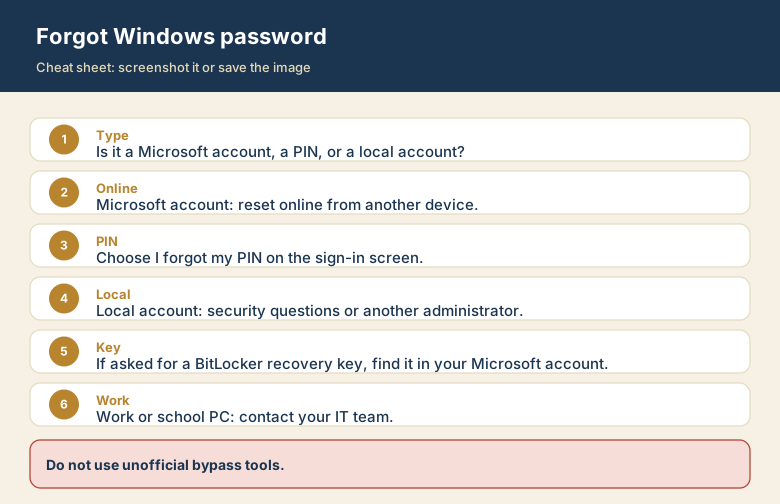
Screenshot this or save the image. It is the short version of the guide, and it is easier to find in a hurry than a web page.