Your laptop is hot on your knees and the fan sounds like a small aircraft. It is tempting to ignore it until the machine shuts itself off. Heat is easy to reduce in most cases, and the causes follow a pattern.
Why laptops get hot
A laptop packs a processor, a graphics chip, and a battery into a thin case, and it cools them with a small fan and thin vents. When heat cannot escape, or the processor works hard, the fan speeds up and the case warms. The three main causes are:
- Airflow: the vents are blocked.
- Load: something is using a lot of processing power.
- Dust and age: the fan and vents are clogged, or the fan and thermal paste are worn.
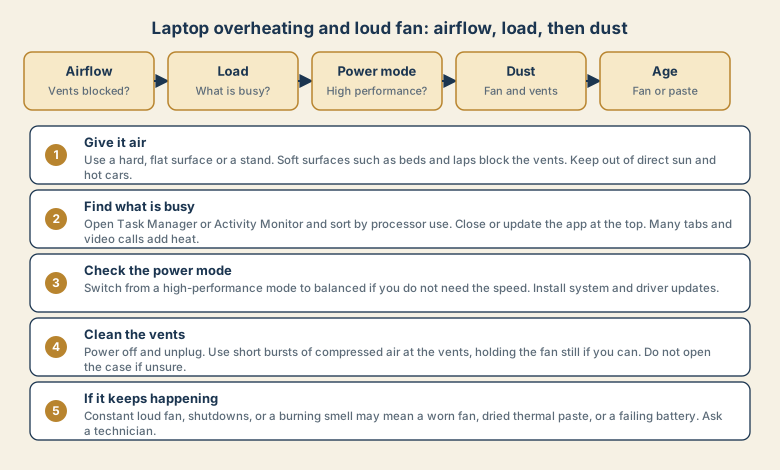
Step 1: Give it air
- Use a hard, flat surface such as a desk, or a stand that lifts the laptop.
- Avoid beds, sofas, and laps. Soft surfaces block the vents.
- Keep it out of direct sun and out of a hot car.
- Do not cover the vents with a case, paper, or a sleeve while it is on.
- Consider a cooling pad if you work for long periods.
Step 2: Find what is busy
Open Task Manager (Ctrl+Shift+Esc on Windows) or Activity Monitor on Mac, and sort by processor use.
- A browser with many tabs, or a video call, is a common heavy user.
- An app stuck at high use may need a restart or an update.
- Updates, indexing, and backups run in the background for a while after start-up.
- A process you do not recognise deserves a look. Search for its name before closing it.
Close or restart the biggest user, and watch whether the fan calms. See laptop slow after an hour for how memory and processor use work together.
Step 3: Check the power mode
Many laptops have a performance or power mode. A high-performance setting runs the processor harder and hotter.
- Switch to balanced or a quieter mode if you do not need the extra speed.
- Update the system and drivers. Some updates change how the fan and power work.
- Check for a firmware update from the maker, which can adjust the cooling.
Step 4: Clean the vents
Dust builds up in the fan and the vents over months, and it cuts airflow.
- Power off and unplug the laptop.
- Use short bursts of compressed air at the vents and the fan openings.
- Hold the fan still if you can, because air can spin it too fast.
- Do not use a household vacuum cleaner directly on the vents, because it can build up static.
- Do not open the case unless you know how and the warranty allows it.
If you use a laptop on a carpet or with pets in the room, expect more dust.
Step 5: When it keeps happening
If the laptop is still hot and loud after the earlier steps, the cause may be inside.
- A worn fan that is noisy or slow.
- Dried thermal paste between the processor and the cooler, in an older laptop.
- A failing battery, which can run hot.
- A hardware fault that makes the processor work harder.
Ask the maker or a technician to check it. This is a routine service job on many laptops.
Warning signs: stop and get help
- A burning smell or smoke.
- A swollen battery, which can lift the case or the trackpad.
- Repeated shutdowns from heat.
- A case that is too hot to touch.
- Water or liquid damage.
In these cases, power off and unplug it, stop using it, and contact the maker or a repairer. Do not keep charging a swollen or very hot laptop.
Common mistakes
- Using a laptop on a bed or a pillow.
- Ignoring a loud fan for months.
- Blowing air into the case while the laptop is on.
- Opening the case without the right tools or knowledge.
- Installing "cooling" or "booster" apps, which often add load.
- Closing a process you do not recognise without checking.
Habits that keep a laptop cool
- Restart weekly, and close apps you do not use.
- Keep tabs under control.
- Clean the vents every few months in a dusty home.
- Install updates when you can.
- Use a stand if you work at a desk all day.
- Unplug at full charge if you leave it connected for long periods and the system offers a battery-care setting.
What to tell a repairer
Describe the symptoms with facts: when the fan gets loud, which apps you were using, how long it takes to heat up, and any shutdowns or smells. Mention the age of the laptop and whether you have ever cleaned it. This guides them to the right fix.
Quick checklist
- Use a hard surface or a stand, and keep the vents clear.
- Find the heavy process in Task Manager or Activity Monitor.
- Switch to a balanced power mode, and install updates.
- Clean the vents with the power off.
- Stop using it if there is a burning smell, a swollen battery, or repeated shutdowns.
Save this cheat sheet
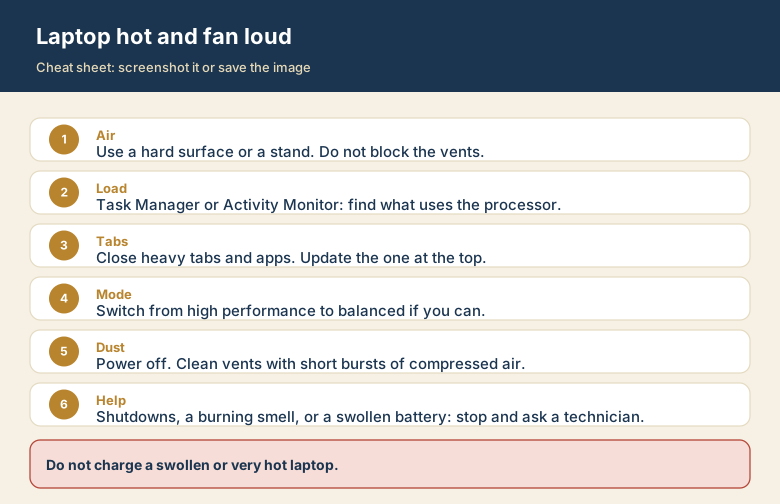
Screenshot this or save the image. It is the short version of the guide, and it is easier to find in a hurry than a web page.