You finish a form, scan a contract, or export a report, and the email will not send. File too large. The PDF may look like only a few pages, yet it weighs tens of megabytes. Fortunately, there are three straightforward ways out, and a few habits that stop it happening again.
Why PDFs get so big
A PDF is a container. What makes it heavy is usually what is inside.
- Scanned pages are pictures of paper. A page saved as a high-resolution colour image is much heavier than a page of real text.
- Large photos inserted at full size.
- Embedded fonts and extras, such as attachments and form data.
- Many layers or versions left by editing.
A typical office scan is far larger than it needs to be.
Three options
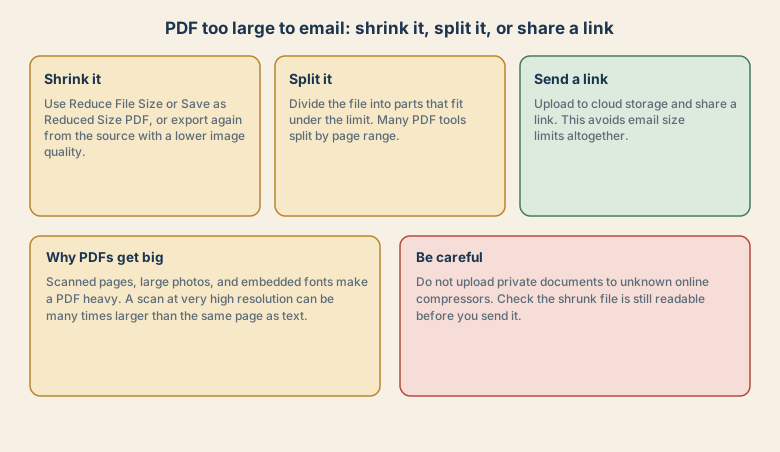
1. Shrink it
- In a PDF app, look for a command such as Reduce File Size, Save as Reduced Size PDF, or Compress.
- On a Mac, Preview can save a smaller version through its export options, though the quality choices are limited.
- From the source, export the document again with a lower image quality setting, or compress the images before you place them.
- Use your own computer, not an unknown website, for anything private.
Always work on a copy, and open the shrunk file to check it. Zoom in on text and images to make sure they are still clear.
2. Split it
If shrinking does not get it under the limit, divide it.
- Use a PDF tool to split the file by page range, such as pages 1 to 10 and 11 to 20.
- Name the parts clearly, such as Part 1 of 3.
- Tell the recipient there are several emails, so nothing is missed.
3. Send a link
For large files, a link is often the best answer.
- Upload the file to cloud storage.
- Create a share link, and set the permission to view only if that is enough.
- Send the link in the email.
This avoids size limits. Check who can open the link. If it contains private information, restrict it to specific people rather than anyone with the link.
Make scans smaller from the start
- Choose 200 to 300 dpi, which is enough for reading text.
- Use grayscale or black and white for text documents, and colour only when you need it.
- Pick a compression setting in the scanning app, if there is one.
- Use a scanning app that recognises text and saves a compact PDF.
- Scan two-sided pages in one go, and crop out the edges and dark borders.
Check the file before you send
- Open the shrunk PDF and scroll through it.
- Zoom in on small text, signatures, and numbers.
- Check the page count and the order.
- Make sure forms and fields still work, if the recipient needs them.
- Look at the size again before you attach it.
Privacy and safety
- Do not upload private documents, such as contracts, IDs, or medical records, to unknown online tools.
- Remove information you do not need to share, such as hidden data or extra pages.
- Be careful with passwords on PDFs. If you protect a file, share the password through a different channel.
- Use a link with limited access for sensitive material, and remove it when the need ends.
Common mistakes
- Shrinking the only copy and losing the original.
- Using a site you do not trust for a private document.
- Not checking the result, so the recipient gets a blurry file.
- Splitting without telling the recipient.
- Attaching a file near the limit, which can still bounce.
- Sending a link that anyone can open.
A short routine
- Keep the original in one place.
- Make a copy for sending.
- Shrink or split the copy, and check it.
- Send by link if it is still large.
- Note what you sent and to whom, for important documents.
If it still bounces
Check the exact message. Some servers reject large files, or the recipient's mailbox may be full. See email not arriving for how to read a bounce message. If the recipient's system has a lower limit than yours, a link solves it.
Quick checklist
- Work on a copy. Keep the original.
- Shrink it, using software you trust, and check it.
- If needed, split it, or send a link.
- Scan at 200 to 300 dpi, in grayscale or black and white for text.
- Do not upload private documents to unknown online tools.
Save this cheat sheet
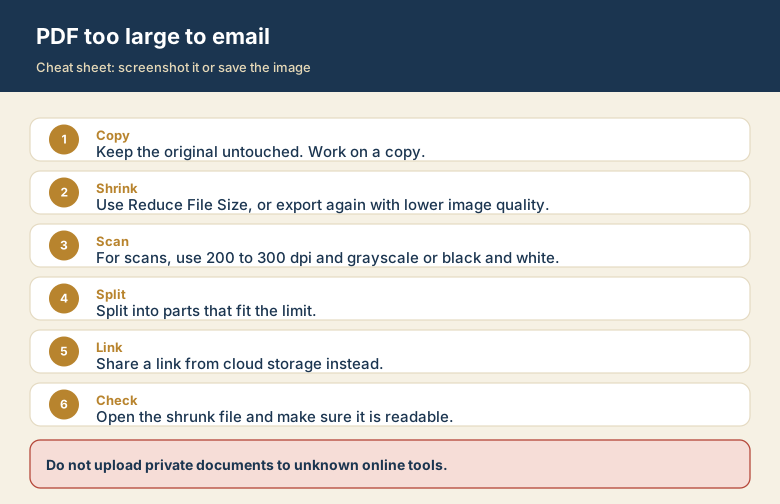
Screenshot this or save the image. It is the short version of the guide, and it is easier to find in a hurry than a web page.