You are away from home, the Wi-Fi is down, and your phone is supposed to be the answer. Instead, the laptop sees the hotspot and refuses to connect, or it connects with no internet. The cause is almost always one of a short list, and you can check it in a few minutes.
How a hotspot works
Your phone shares its mobile data connection by creating a small Wi-Fi network. Another device joins it as it would any Wi-Fi. This needs four things to line up: a plan that allows sharing and has data, a hotspot that is on and set up correctly, power and signal, and a device that can join. The fault sits in one of them.
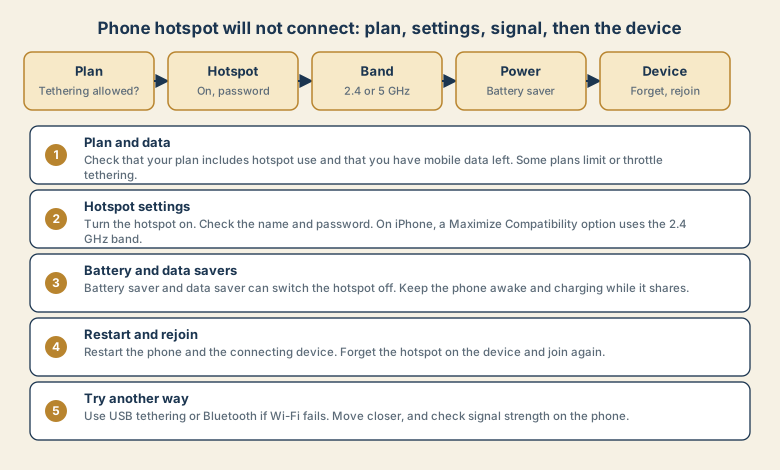
1. Check the plan and data
- Does your plan include hotspot or tethering? Some plans exclude it, limit it, or slow it after a set amount.
- Do you have mobile data left? Test the internet on the phone itself, with Wi-Fi off. If the phone has no internet, the hotspot cannot share any.
- Do you have signal? A weak signal gives a weak hotspot.
- Are you roaming abroad? Some roaming plans block sharing. Check with your carrier.
2. Check the hotspot settings
- iPhone: Settings, Personal Hotspot. Turn on Allow Others to Join. The name comes from the phone's name, and the Wi-Fi password is shown there.
- Android: open Settings and search for Hotspot or Tethering, since the path differs by maker. Turn the hotspot on, and check the name and password.
- Band: Wi-Fi uses the 2.4 GHz and 5 GHz bands. 2.4 GHz reaches farther and works with more devices, and 5 GHz is faster. On iPhone, Maximize Compatibility uses the 2.4 GHz band. On Android, you can often choose the band in the hotspot settings. If an older device cannot see or join the network, choose 2.4 GHz.
- Password: type it exactly, with attention to capitals and look-alike characters.
- Keep the settings screen open on some phones while the other device joins.
3. Battery saver and data saver
Power-saving modes can stop a hotspot or limit what it does.
- Turn off battery saver or low power mode while sharing.
- Turn off data saver for the hotspot, if it blocks the sharing.
- Keep the phone charging. Sharing uses a lot of battery, and the phone gets warm.
- On Android, check the option to turn the hotspot off automatically when no device is connected.
4. Restart and rejoin
- Restart the phone and the connecting device. This clears many stuck states.
- Forget the hotspot on the laptop or tablet, and join it again. A saved network can hold an old password or band.
- Check the connecting device's Wi-Fi is on and not in airplane mode.
- Turn off any VPN on the connecting device and test again.
- Move the devices close to each other, with nothing between them.
5. Try another way
If Wi-Fi tethering fails, other methods may work.
- USB tethering: connect the phone to the computer by cable and turn on USB tethering (Android), or trust the computer on iPhone and enable the hotspot. It is often the most reliable and charges the phone too.
- Bluetooth tethering: pair the devices and turn on Bluetooth tethering. It is slow but may work.
- A different device: test whether a second device can join. If one can and another cannot, the problem is the second device.
If it connects but the internet is slow
- Check the phone's own signal and speed. The hotspot cannot be faster than the phone's connection.
- Pause large downloads and updates on the connected device.
- Lower video quality for streaming and calls.
- Move the phone to a spot with better signal, such as near a window.
- Check whether your carrier slows hotspot data after a limit.
Common mistakes
- Assuming the laptop is at fault when the phone has no data.
- Using a hotspot on a plan that blocks it, and getting an unexpected bill or throttling.
- Leaving a saved old network on the connecting device.
- Letting the phone overheat in a hot car or in the sun.
- Forgetting battery saver.
- Letting a laptop run updates over a metered phone connection.
Use a hotspot safely
- Set a strong password, and do not leave the hotspot open.
- Turn it off when you are done.
- Watch the connected-devices list, and remove ones you do not know.
- Keep updates for later if the connection is metered.
- Check your data use so a hotspot session does not use the month's allowance.
What to tell your carrier
If the plan seems to block sharing, say what you see: the phone model, the plan, the time it started, and any message that appears. Ask whether tethering is allowed and whether any limit applies. A specific question gets a clear answer.
Quick checklist
- Check the plan, data left, and signal on the phone itself.
- Turn the hotspot on, and check the name, password, and band.
- Turn off battery saver and data saver, and keep the phone charging.
- Restart both devices, forget the network, and rejoin.
- Try USB or Bluetooth tethering.
Save this cheat sheet
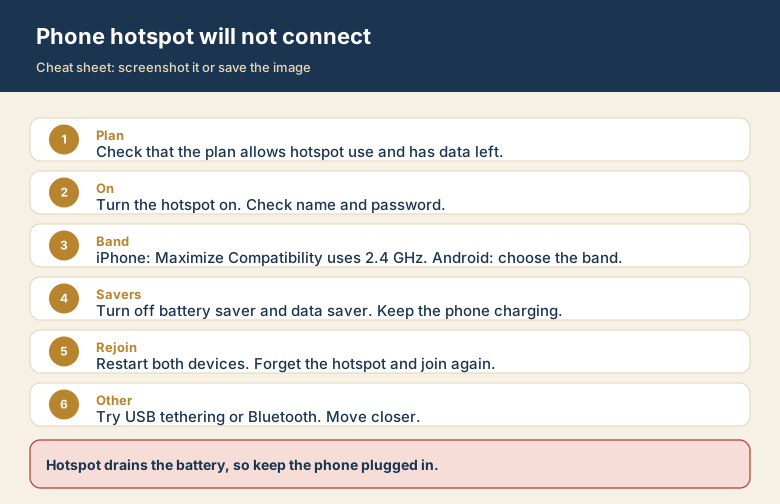
Screenshot this or save the image. It is the short version of the guide, and it is easier to find in a hurry than a web page.