Pages load slowly, video buffers, and the call stutters. The instinct is to buy a faster plan or a new router. That can be an expensive guess. A short test tells you where the slowness is, and you can often fix it for free.
Why Wi-Fi feels slow
Speed is limited by the slowest link between your device and the internet: the plan and the line, the router, the Wi-Fi signal, and your device. Only one of them is usually the bottleneck. Speed tests vary, so run each test two or three times and note the numbers.
The three-way test
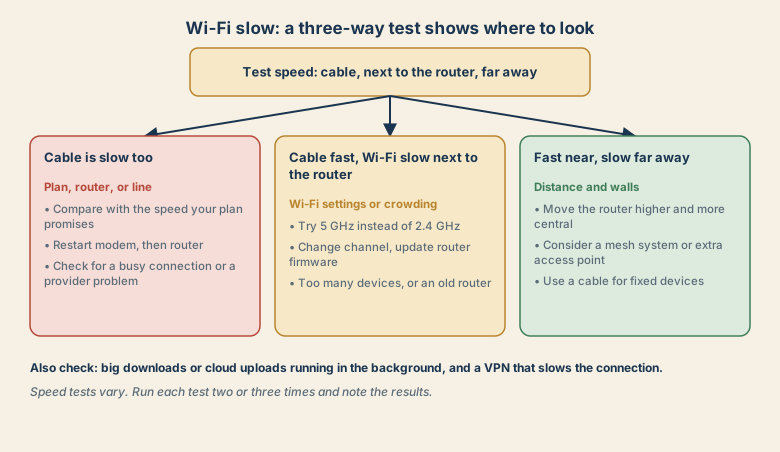
Run a speed test in three places.
- By cable: connect a computer to the router with an Ethernet cable.
- Wi-Fi next to the router.
- Wi-Fi where it is slow.
Result A: the cable is slow too
The Wi-Fi is not the problem. Look at:
- Your plan. Compare the result with what your plan promises.
- The modem and router. Restart the modem, then the router. See Wi-Fi connected but no internet for the right order.
- The line or the provider. Check for an outage, and contact your provider with your test results.
Result B: the cable is fast, but Wi-Fi next to the router is slow
The Wi-Fi settings or crowding are the problem.
- Use the 5 GHz band if your router and device support it.
- Change the channel, or let the router choose automatically.
- Update the router's firmware.
- Check the age of your device. An old device may use an older, slower Wi-Fi standard.
- Reduce interference from nearby devices, such as microwaves and baby monitors.
Result C: fast near the router, slow far away
Distance and walls are the problem.
- Move the router higher, more central, and out of a cupboard.
- Add a mesh system or a wired access point if the home is large or has thick walls.
- Use a cable for fixed devices, such as a TV, a console, or a desktop. This frees up Wi-Fi for everything else.
- Avoid cheap extenders if you want full speed, since they often halve it.
Check what else is using the connection
- Cloud uploads and photo backups. See cloud files not syncing.
- System updates and game downloads, which can take everything.
- Video streams on several screens.
- A VPN, which can reduce speed.
- Security cameras that upload constantly.
Pause the heaviest one and test again.
Common mistakes
- Buying a faster plan before testing.
- Testing only once. Speed varies.
- Using Wi-Fi for everything, including fixed devices that could use a cable.
- Hiding the router in a cupboard or behind a TV.
- Never updating the router.
- Blaming the provider when only far rooms are slow.
A ten-minute router routine
- Place it well: high, central, with open space around it.
- Check updates and install them.
- Restart it when you notice slowdowns.
- Review connected devices and remove ones you do not recognise.
- Choose a strong Wi-Fi password and keep the router login safe.
What to tell your provider
If the cable test is slow, say so, with the numbers: the speed by cable, your plan, the time of day, and what you tried (restarting the modem and router). A specific report moves faster than "the internet is slow".
Reading speed test numbers
A speed test shows several numbers, and they mean different things.
- Download: how fast data reaches you. It matters for streaming and downloads.
- Upload: how fast data leaves you. It matters for video calls, cloud backups, and sending big files.
- Latency (ping): the delay in a round trip, in milliseconds. High latency makes calls and games feel laggy even when the download number is large.
- Jitter: how much latency varies. Unsteady latency causes stuttering in calls.
For video calls, a steady connection with low latency matters more than a huge download number. If calls stutter but downloads look fine, check latency, upload, and what else is using the connection.
Wi-Fi standards in plain words
Routers and devices use a generation of Wi-Fi, often named Wi-Fi 5, Wi-Fi 6, Wi-Fi 6E, or Wi-Fi 7. A newer router helps only if your devices also support the newer standard, and the connection runs at the speed of the older side. If a laptop or phone is several years old, a new router may not make it faster. It can still help by handling many devices better.
Quick checklist
- Test by cable, next to the router, and far away.
- Cable slow: plan, router, line, or provider.
- Wi-Fi slow near the router: 5 GHz, channel, firmware, old device.
- Slow only far away: placement, mesh, or a cable.
- Pause big uploads, updates, and VPNs, then test again.
Save this cheat sheet
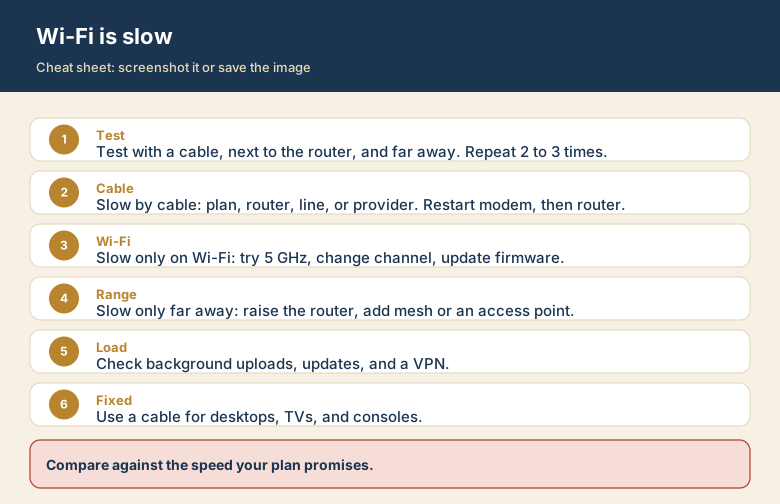
Screenshot this or save the image. It is the short version of the guide, and it is easier to find in a hurry than a web page.