You plug in your phone and nothing happens. Or the percentage creeps up so slowly that it barely beats what you use. Before you assume the phone is broken, look at the whole chain that delivers power. One weak link is enough to stop it.
The chain from wall to phone
A phone charges through four connected parts.
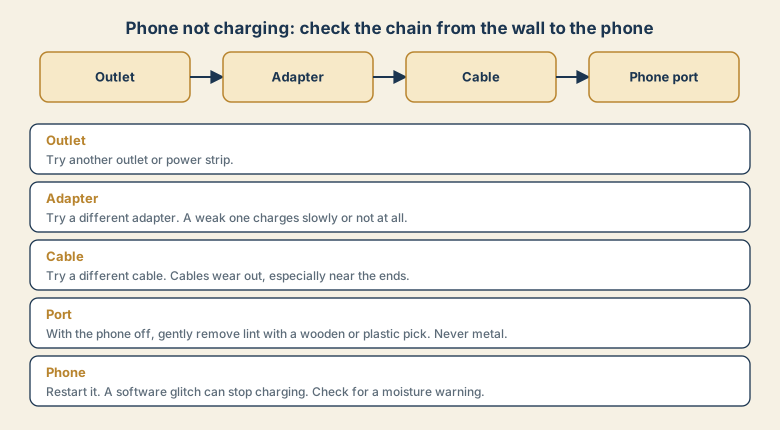
- Outlet or power strip
- Adapter (the plug brick)
- Cable
- The phone's port
You find the fault by replacing one part at a time with a known good one.
Step by step
1. Try another outlet
A dead outlet, a switched-off socket, or a faulty power strip looks exactly like a broken phone. Test a lamp in the same outlet, or move to another.
2. Try another adapter
Use an adapter you know works. A weak adapter charges slowly or not at all, especially if it is meant for small devices. A laptop's USB port may supply less power than a wall adapter.
3. Try another cable
Cables wear out, especially near the ends where they bend. A cable can carry data but fail to carry enough power. A new, good cable fixes more charging problems than anything else.
4. Check and clean the port
Pocket lint packs into the port over months, and the plug no longer seats fully.
- Switch the phone off.
- Shine a light into the port and look for lint.
- Gently remove it with a wooden or plastic pick or a soft brush.
- Never use metal, and never push hard.
- Never put liquid into the port.
5. Restart the phone
A software glitch can stop charging. Restart it, and try again. Also check that the phone is not showing a moisture warning.
If it charges, but slowly
- Weak adapter or cable. Use ones that match your phone's fast-charging standard.
- Screen on and heavy use. Charge with the screen off to compare.
- Heat. A hot phone slows charging to protect the battery. Remove the case and move to a cooler place.
- Background activity. Apps syncing or updating can use the power you are adding.
- Low-quality charger. Choose a reputable brand.
- Charging protections. Some phones slow charging near full or learn your schedule to charge slowly overnight. This is normal.
Wireless charging problems
- The phone must sit squarely on the charger.
- Thick cases or metal plates and cards can block charging.
- The charger needs a proper power adapter.
- A hot phone or charger slows or pauses charging.
When it might be the battery or the phone
- No cable, adapter, or outlet works, and the port is clean.
- The battery drains fast or shuts off suddenly, and battery health is low.
- The phone is swollen, hot, or smells odd. Stop using it, and contact the maker or a repair service. Do not keep charging it.
- The port is loose or damaged. A repair shop can replace it.
Common mistakes
- Using a damaged or frayed cable. It can be unsafe.
- Trusting a very cheap, unbranded charger.
- Using a metal pin to clean the port.
- Charging a wet phone.
- Assuming it is the phone before trying another cable.
- Leaving a phone charging under a pillow, where heat builds up.
Keep it charging well
- Keep a good spare cable and adapter for testing and travel.
- Do not bend the cable sharply near the plug.
- Pull the plug, not the cable.
- Clean the port gently once in a while, if you carry the phone in a pocket.
- Avoid heat while charging.
- Read what drains the battery if the battery does not last.
Quick reference: symptom to likely cause
| What you see | Likely cause | First thing to try |
|---|---|---|
| Nothing happens when plugged in | Dead outlet, cable, or adapter | Swap each part |
| Charges only if the cable is held at an angle | Worn cable or lint in the port | New cable; clean the port |
| Charges very slowly | Weak adapter or cable; screen on; heat | Better adapter; screen off; cool down |
| "Liquid detected" warning | Moisture in the port | Unplug and let it dry |
| Charges then stops at a certain level | Charging protection, heat, or an ageing battery | Check settings and battery health |
Charging safely while travelling
- Carry your own cable and adapter, rather than trusting unknown public chargers.
- Use a wall outlet or your own power bank when you can. Public USB ports can be risky for data.
- Do not charge a hot phone in a bag or under a pillow.
- Check the voltage rating of adapters abroad. Most modern phone adapters work worldwide, but you may need a plug adapter.
Quick checklist
- Test another outlet, adapter, and cable, one at a time.
- Look for lint in the port, and clean it gently with a wooden or plastic pick.
- Restart the phone, and check for a moisture warning.
- Slow charging: check adapter, cable, heat, and screen-on use.
- If nothing works, check battery health and contact the maker.
Save this cheat sheet
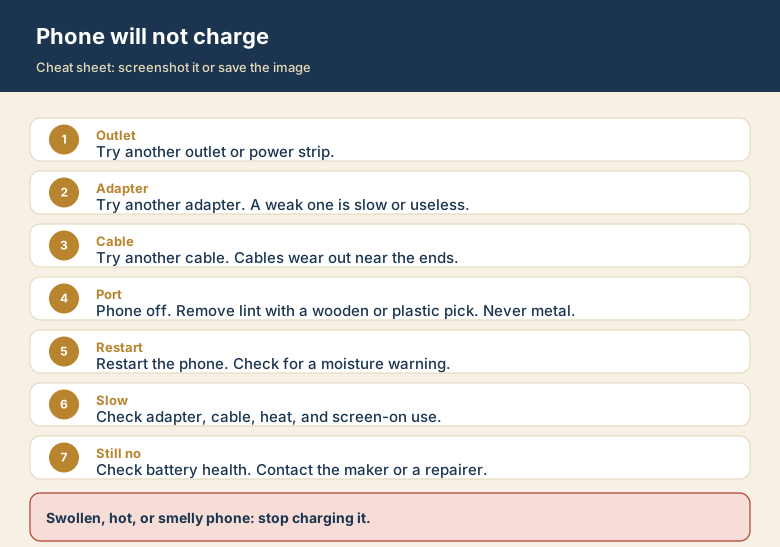
Screenshot this or save the image. It is the short version of the guide, and it is easier to find in a hurry than a web page.