You open a spreadsheet and wait. Typing lags, scrolling stutters, and saving takes a minute. Many people assume the computer is too old. In practice, the file is often the problem, and it got heavy without anyone noticing.
First, decide: the computer or the file?
Open a different, small spreadsheet.
- It is fast: the computer is fine. The slow file has bloat.
- Everything is slow, in every program: look at the whole computer. See laptop slow after an hour.
Six checks, in order
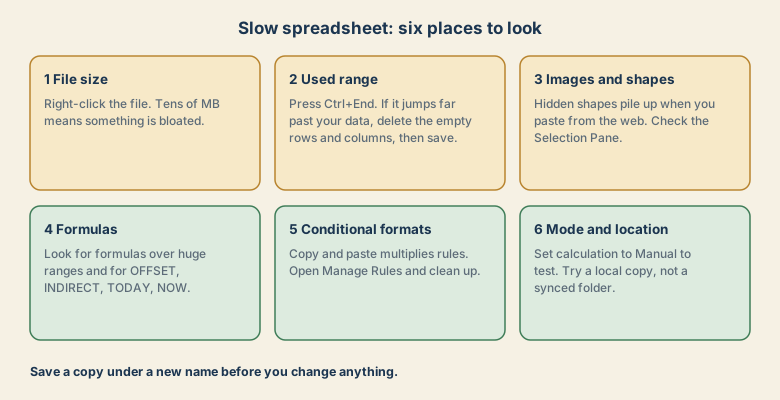
Before you start, save a copy under a new name. Cleaning can change a file in ways you will not want to undo.
1. Check the file size
Right-click the file and open its properties. A few megabytes is normal. Tens of megabytes for a simple sheet means something inside is bloated, and the next checks will find it.
2. Check the used range
Excel remembers a "used range", the area it considers to hold content. Copying, formatting, or clearing cells can stretch it down to hundreds of thousands of rows even when they look empty.
- Press Ctrl+End. Excel jumps to the last cell it believes is used.
- If that cell is far past your data, select the empty rows below your data and delete them (do not just clear contents).
- Do the same for empty columns to the right.
- Save the file. The range resets only after saving.
Press Ctrl+End again. If it now lands on your last real cell, this was the problem.
3. Look for images and shapes
Pasting from web pages can bring in many small hidden shapes, and large images keep their original size.
- Open Home, Find and Select, Selection Pane to list every object, including hidden ones.
- Delete shapes you do not need.
- Select an image and use Compress Pictures to shrink it.
4. Look at the formulas
Formulas that read huge ranges, or that recalculate with every change, slow everything down.
- Limit references to the range that holds data instead of whole columns where you can.
- Be careful with volatile functions such as OFFSET, INDIRECT, TODAY, NOW, and RAND. They recalculate whenever anything changes.
- Thousands of lookups on large tables can be slow. Consider turning finished results into values.
5. Clean up conditional formatting
Copying and pasting cells can duplicate formatting rules until hundreds pile up.
- Open Home, Conditional Formatting, Manage Rules.
- Show rules for This Worksheet.
- Delete duplicates, and merge rules that apply to the same range.
6. Check calculation mode and file location
- Formulas, Calculation Options, Manual is a useful test. If the file gets fast, recalculation is the cause. Press F9 to recalculate while you test, and switch back to Automatic when you finish.
- Try opening a local copy. Files in sync folders or on network drives open slower.
What else can cause slowness
- External links make Excel look for other files when it opens. Check Data, Edit Links and remove what you do not need.
- Add-ins can slow start-up. Disable ones you do not use.
- Very large data sets may belong in a database or in Power Query rather than in cells.
- Splitting a file by year or by purpose often helps more than any setting.
A pattern that shows up again and again
In IT support, a slow Excel session is often a large file that stays open for hours, alongside many browser tabs and a video call. Excel is not the only thing using memory. Close what you are not using, and restart Excel during the day if it keeps growing.
Common mistakes
- Clearing contents instead of deleting rows, so the used range stays huge.
- Making many changes at once, and not knowing which one helped.
- Skipping the backup copy.
- Leaving calculation on Manual and reading old numbers.
- Pasting from the web into cells and keeping all the formatting. Use paste values.
Habits that keep files light
- Paste as values when you do not need source formatting.
- Delete unused sheets, rows, and columns.
- Keep images small, and link instead of embedding where possible.
- Use one consistent table for data, and a separate sheet for reports.
- Save under a new version name now and then, and archive old versions.
If it is still slow
Note the file size, how long it takes to open, what you changed, and what you tried. A person who helps you, or your IT team, can work from facts. For a very large file, ask whether the data should live in a database instead.
Quick reference: symptom to likely cause
| What you notice | Likely cause | First thing to try |
|---|---|---|
| Large file, few rows of data | Huge used range or hidden shapes | Ctrl+End, delete empty rows and columns; Selection Pane |
| Slow only when you change a cell | Heavy or volatile formulas | Manual calculation test; reduce ranges |
| Slow to open, fine afterwards | External links, add-ins, or a synced folder | Edit Links; disable add-ins; use a local copy |
| Scrolling is jerky | Many shapes or conditional formats | Clean up objects and rules |
| Crashes while saving | A very large or damaged file | Save a copy; try .xlsb; split the file |
When a spreadsheet is the wrong tool
If the file keeps growing, with hundreds of thousands of rows or many linked workbooks, the problem may not be a setting. Spreadsheets are great for analysis and small data sets, but a database or a query tool handles large, shared, constantly updated data better. Moving the raw data there and keeping only the summary in Excel is often the lasting fix.
Quick checklist
- Make a copy first.
- Compare with another small file to decide whether it is the file or the PC.
- Ctrl+End, delete empty rows and columns, save.
- Check shapes, formulas, conditional formatting, links, and add-ins.
- Test Manual calculation, then restore Automatic.
Save this cheat sheet
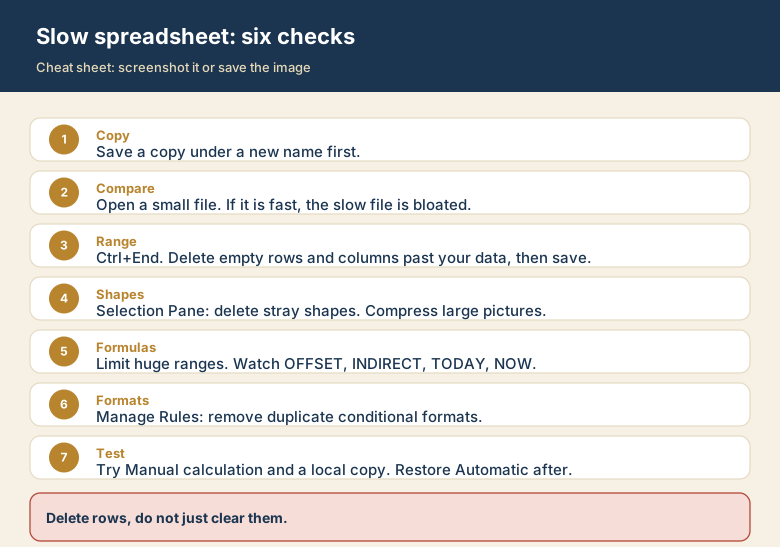
Screenshot this or save the image. It is the short version of the guide, and it is easier to find in a hurry than a web page.