Your pointer stops. It freezes in place, jumps around, or ignores your finger. It is one of the most common laptop complaints, and it is often a switch you pressed by accident rather than a broken part. Treat it as two questions: is the device working, and are the settings letting it?
Keep working while you fix it
If you cannot move the pointer, use the keyboard.
- Tab and the arrow keys move between items, and Enter selects.
- Windows: the Win key opens search, and Alt+Tab switches windows.
- Mac: Command+Space opens Spotlight.
- A spare USB or Bluetooth mouse is the easiest short-term answer.
Which device is it?
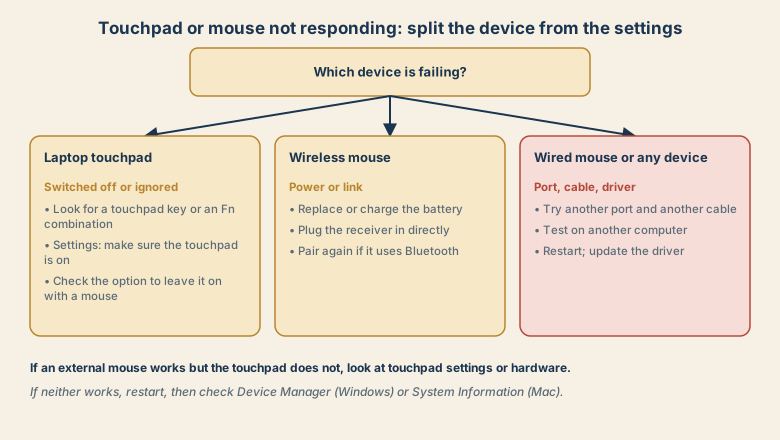
The laptop touchpad
- Look for a touchpad key. Many laptops have a key, often in the F-row with a touchpad symbol, or an Fn combination, that turns the touchpad off and on. A small light may show the state.
- Check the setting. Windows: Settings, Bluetooth and devices, Touchpad, and make sure the touchpad is on. Mac: System Settings, Trackpad.
- Check the option about mice. Windows has an option to leave the touchpad on when a mouse is connected. Mac has an accessibility option to ignore the built-in trackpad when a mouse or wireless trackpad is present. If the touchpad dies when you plug in a mouse, this is the cause.
- Clean the surface with a lint-free cloth, slightly damp. A dirty or wet touchpad can misbehave.
- Restart the computer. This clears many driver glitches.
- Update the system and the touchpad driver from the maker if the pointer jumps or freezes.
A wireless mouse
- Battery: replace it or charge it. A weak battery gives lag and jumps.
- Receiver: plug the USB receiver directly into the computer, not a hub, and as close to the mouse as you can.
- Bluetooth: remove the mouse from the Bluetooth list and pair it again. See Bluetooth headphones will not connect, which uses the same re-pairing steps.
- Interference: other wireless devices and metal desks can disturb the link.
- Surface: optical mice struggle on glass and shiny surfaces. Try a mouse mat.
A wired mouse, or any device
- Try another USB port, and plug in directly, not through a hub.
- Try another cable, if the mouse has a detachable one.
- Test the mouse on another computer. If it fails there, the mouse is the problem.
- Restart, then update the system.
- Check Device Manager on Windows for a warning next to the mouse or touchpad, or System Information on Mac to see whether the device appears.
- See USB device not recognized for more on ports and cables.
If the pointer jumps, drifts, or double-clicks
- Check the pointer speed and sensitivity in the mouse or touchpad settings.
- Turn on palm rejection or the option to ignore accidental touches while typing, so your palm does not move the pointer.
- Clean the sensor on an optical mouse.
- Check for a stuck button or a worn switch if double-clicks happen on a single click.
When it might be the hardware
- The touchpad fails everywhere, including setup screens, and an external mouse works.
- The touchpad is swollen or lifted, which can be a sign of a bad battery. Stop charging and ask a technician.
- The pointer is jumpy only and the touchpad feels loose or damaged.
In these cases, use an external mouse and ask the maker or an authorised repairer.
Common mistakes
- Assuming the touchpad is broken when it was switched off with a key.
- Using a hub for a wireless receiver.
- Forgetting the setting that ignores the touchpad when a mouse is plugged in.
- Pressing keys at random to find the touchpad switch.
- Cleaning with a very wet cloth.
- Installing "driver updater" tools from unknown sources.
Make it reliable
- Learn your touchpad key and the setting that controls it.
- Keep spare batteries or charge the mouse regularly.
- Use a mouse mat for an optical mouse.
- Keep the system and drivers updated.
- Keep a spare mouse for emergencies.
What to tell support
Say which device fails, the laptop or mouse model, the system version, what you tried (the touchpad key, an external mouse, another port), and whether it started after an update or a spill. Mention if the touchpad works in the setup screen.
Quick checklist
- Use the keyboard while you fix it.
- Check the touchpad key and the touchpad setting.
- Check the setting that ignores the touchpad when a mouse is present.
- Wireless mouse: battery, receiver, Bluetooth pairing.
- Test on another computer, restart, update drivers.
Save this cheat sheet
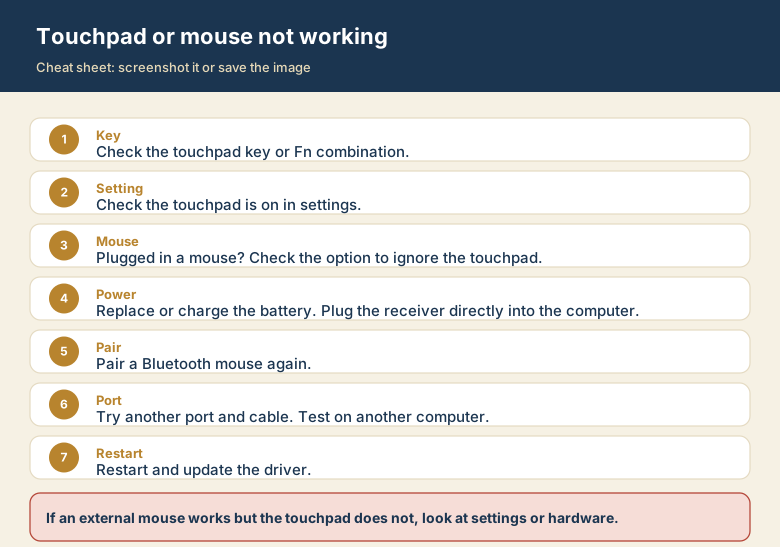
Screenshot this or save the image. It is the short version of the guide, and it is easier to find in a hurry than a web page.