You click a link and the tab turns grey with a sad face: Aw, Snap! Or the whole browser freezes, closes without warning, or opens and then dies. Browsers are among the most complex programs on a computer, and they crash for a small number of common reasons. Here is how to find yours.
Why browsers crash
- Memory shortage: many tabs, big web apps, and video calls use a lot, and when it runs out a tab or the browser fails.
- An extension that conflicts with a page or the browser itself.
- An out-of-date browser or system, with a bug that has since been fixed.
- Graphics or driver trouble, especially with video and acceleration.
- Security software that interferes with the browser.
- A damaged profile or corrupt data, such as a broken cache.
- Unwanted software that injects ads or redirects.
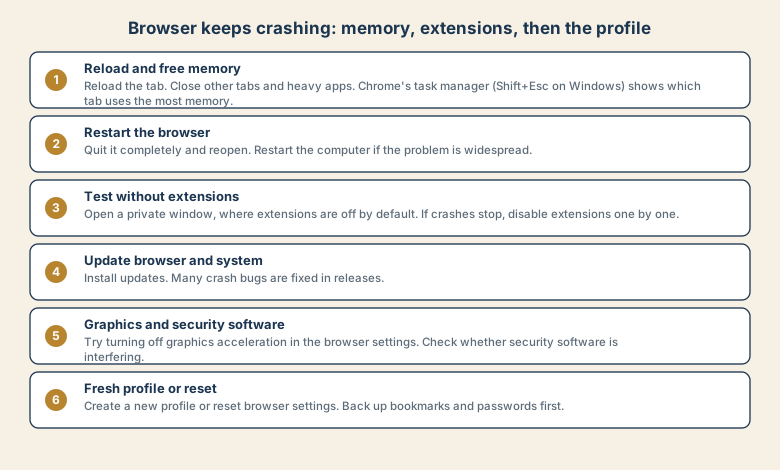
Step 1: Reload and free memory
- Reload the tab. A single crash may be a one-off.
- Close other tabs and heavy apps, such as video calls, large spreadsheets, and games.
- Look at memory use. In Chrome, press Shift+Esc on Windows, or use the Window menu, Task Manager on Mac. It shows each tab and extension, and you can end the heaviest.
- Turn on Memory Saver in Chrome, or Sleeping tabs in Edge, so unused tabs sleep. See laptop slow after an hour for how memory problems build up.
Step 2: Restart the browser
Quit the browser completely, not just the window, and open it again. If the problem is across all your programs, restart the computer too. A fresh start clears memory and stuck processes.
Step 3: Test without extensions
Open a private or incognito window. Most extensions are off there unless you allow them.
- Crashes stop in the private window: an extension is the likely cause.
- Disable extensions one at a time from the extensions page, and test after each, until the crashes stop.
- Remove extensions you do not use or do not recognise. Each one runs all the time.
Step 4: Update the browser and system
Install pending browser and operating-system updates, and restart. Crash fixes are a regular part of releases. If a crash started right after an update, check the browser's support forum for a known issue before you roll back.
Step 5: Check graphics acceleration and security software
- Graphics acceleration. Open the browser settings, find the System section, and switch off the option to use graphics acceleration when available. Restart the browser. If crashes stop, update your graphics driver.
- Security software. Some programs that scan web traffic cause crashes. Check the settings for an option to scan secure connections, or temporarily test with a different setting, rather than removing protection.
- Check your system's memory. If the computer itself is struggling, the browser will too.
Step 6: Fresh profile or reset
If nothing helps, your profile may be damaged.
- Back up first: make sure your bookmarks and passwords sync to your account or are exported.
- Create a new profile in the browser, and test it. If it works, move over your data gradually.
- Reset the browser settings from the settings page. This usually turns off extensions and clears temporary data.
- Reinstall the browser as a last resort, using the official download.
If you suspect unwanted software
Crashes with pop-ups, redirects, a changed home page, or toolbars you did not install point to unwanted software.
- Run a scan with trusted security software.
- Review the extensions list and remove unfamiliar ones.
- Check installed programs for ones you did not choose.
- Change passwords from a clean device if you entered them on suspicious pages. See account hacked.
Common mistakes
- Keeping 50 tabs open and expecting the browser to cope.
- Installing many extensions from unknown makers.
- Ignoring updates for months.
- Resetting without a backup of bookmarks and passwords.
- Downloading a "browser cleaner" that adds its own problems.
- Blaming the website when the browser or the computer is the cause.
Keep it stable
- Restart the browser and the computer weekly.
- Keep tabs under control. Use bookmarks instead of leaving pages open.
- Review extensions every few months.
- Install updates promptly.
- Use one trusted browser profile for each purpose, such as work and personal.
- Sync your data so a reset is painless.
What to tell support or a forum
Give the browser name and version, the operating system, the exact message (such as the error code under Aw, Snap!), what you tried, and whether it happens on one site or everywhere. A specific report gets a specific answer.
Quick checklist
- Reload, close tabs, and check memory use.
- Restart the browser, then the computer.
- Test in a private window, and disable extensions one at a time.
- Update the browser and system.
- Try turning off graphics acceleration, then a fresh profile or reset after a backup.
Save this cheat sheet
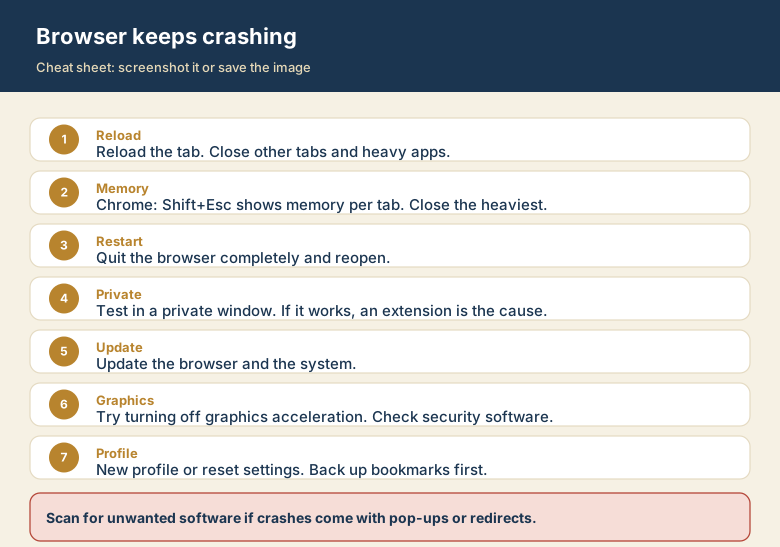
Screenshot this or save the image. It is the short version of the guide, and it is easier to find in a hurry than a web page.