You click the Windows button and nothing opens. Or the taskbar freezes, icons vanish, and the clock stops. It is alarming, because these are how you do almost everything. Fortunately, the fixes run from a few seconds to a few minutes, and the first one works surprisingly often.
First, a way to do things without the Start menu
When Start is stuck, these still work:
- Ctrl+Shift+Esc opens Task Manager.
- Win+R opens the Run box, where you can type a program name.
- Ctrl+Alt+Del shows a menu with options to sign out, restart, and open Task Manager.
The ladder, from easy to repair
1. Restart Windows Explorer
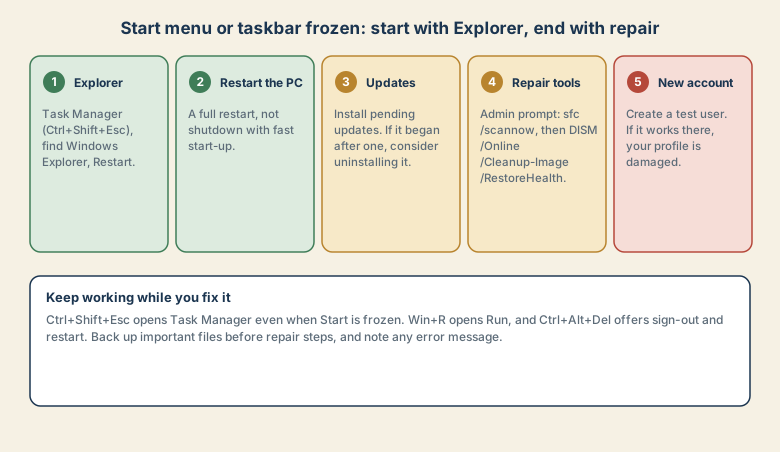
Windows Explorer draws the desktop, the taskbar, and the Start menu. If it hangs, restarting it often restores everything.
- Press Ctrl+Shift+Esc to open Task Manager.
- Find Windows Explorer in the list of processes.
- Right-click it and choose Restart.
The screen may flicker for a moment, then the taskbar returns.
2. Restart the PC properly
Choose Restart, not Shut down. On many computers, shutting down with fast start-up keeps part of the system state, so a problem can survive. A restart does a full reload. Save your work first.
3. Install updates, or consider the one that broke it
- Install pending updates. A known problem may already have a fix.
- If it began right after an update, look for a newer update. As a last resort, uninstall the latest update from Windows Update history, and install updates again when a fix is released. Note that removing an update removes its security fixes.
4. Run the system repair tools
If problems continue, check the system files. Back up important files first.
- Search for Command Prompt, right-click it, and choose Run as administrator.
- Run
sfc /scannowand wait for it to finish. - Run
DISM /Online /Cleanup-Image /RestoreHealthand wait for it to finish. - Restart and test again.
These can take a while, and progress can look stuck. Let them run.
5. Test a new user account
This tells you whether Windows or your profile is at fault.
- Create a new local user account from Settings, Accounts, or from a command line if you cannot reach Settings.
- Sign in to it and test the Start menu and taskbar.
- If they work there, your original profile is damaged. Move your files to the new account and use it.
- If they fail there too, the problem is in Windows itself, and a repair or reset may be needed.
Other things that cause it
- The Windows key is disabled, by a gaming mode or a keyboard setting. Check for a Win key lock on keyboards that have one, and for a game mode switch.
- A recently installed program that changes the interface. Uninstall it, or test in Safe Mode.
- Corrupted system files or a damaged component, which the repair tools can fix.
- Not enough memory or disk space, which makes the shell slow or unresponsive. See laptop slow after an hour.
- Malware or a faulty driver. If other things behave oddly, scan the computer and update drivers.
Safe Mode as a test
Starting Windows in Safe Mode loads only essential components. If the Start menu works in Safe Mode, an add-on program or a driver is the likely cause. You can then uninstall recent software one by one.
Common mistakes
- Pressing the power button and forcing a shutdown at the first freeze.
- Skipping a backup before repair or reset.
- Downloading "Start menu fixer" tools from unknown sites.
- Resetting Windows before trying Explorer, a restart, and the repair tools.
- Using Shut down instead of Restart while troubleshooting.
- Ignoring updates for months, so a bug stays unfixed.
Habits that prevent it
- Restart weekly, and use Restart rather than Shut down now and then.
- Install updates with the computer plugged in.
- Keep free disk space and watch memory use.
- Install software from trusted sources only.
- Keep backups of your files, so a repair is never a risk. See sync is not a backup.
- Note the date a problem starts, and what changed just before.
If it will not recover
If the Start menu and taskbar fail after all the steps, consider Reset this PC, with the option to keep your files, after you back up. For a computer from work, ask your IT team.
Quick checklist
- Ctrl+Shift+Esc, restart Windows Explorer.
- Restart properly, and install updates.
- Run
sfc /scannowand the DISM command from an administrator prompt. - Test a new user account.
- Back up before any repair or reset.
Save this cheat sheet
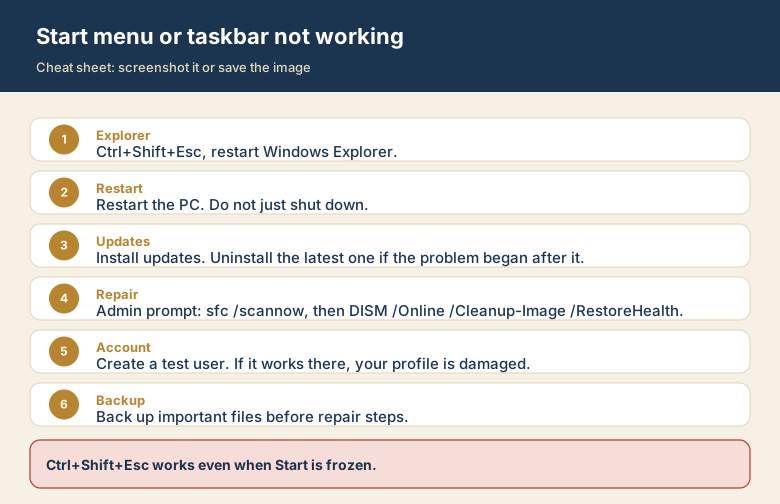
Screenshot this or save the image. It is the short version of the guide, and it is easier to find in a hurry than a web page.