You arrive at a hotel, join the Wi-Fi, and see the connected icon. But nothing loads, and the sign-in page that should ask for your room number never appears. The network is working. What is missing is the page that tells you to sign in, and you can often make it appear.
What is going on
Many public networks use a captive portal: until you sign in or accept terms, they block the internet and redirect your first web request to a sign-in page. For this to work, your device must try an address the network can redirect. If something stops that, you are stuck in a connected but useless state.
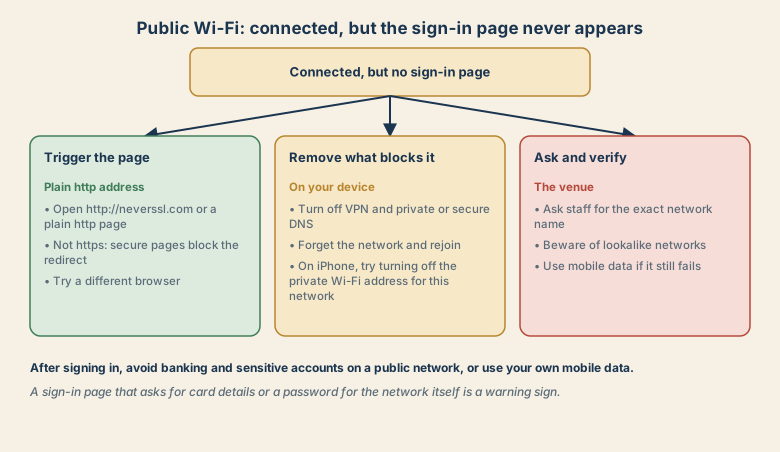
Common blockers are:
- Your browser trying a secure (https) page, which cannot be redirected without a warning.
- A VPN or private or secure DNS that sends traffic away from the network's redirect.
- An old saved network or a stuck connection.
- A private Wi-Fi address setting that confuses a network that remembers devices.
- A browser that has cached a page or uses its own secure DNS.
Step 1: Trigger the page
Open your browser and go to a plain http address, not https.
- Type http://neverssl.com or a similar plain-http test address.
- Wait a few seconds. The network should redirect you to its sign-in page.
- If your browser insists on https, try another browser, or a private window.
- Some phones show a prompt such as "Sign in to Wi-Fi network". Tap it.
Step 2: Remove what blocks it
- Turn off your VPN. Sign in first, and turn it back on afterwards.
- Turn off private or secure DNS. On Android, check the Private DNS setting and set it to automatic or off while you sign in. Some browsers have a secure DNS option that can interfere.
- Forget the network and rejoin. This clears a stuck connection.
- Turn Wi-Fi off and on, or switch airplane mode on and off.
- On iPhone, open the network's information in Wi-Fi settings and try turning off the private Wi-Fi address for that network, then rejoin.
- Try another browser or a private window.
Step 3: Ask and verify
- Ask staff for the exact network name and sign-in steps. Hotels often use your room number and surname.
- Beware of lookalike networks. A network with a similar name to the venue's may be a fake. If two similar names appear, ask which is real.
- Check the instructions on a card, a sign, or the booking confirmation.
- Use mobile data if the network still fails, or if you cannot confirm it is the real one.
Hotels, airports, and cafes
- Hotels: you may need your room number and surname, and a limit on the number of devices may apply. Sessions can expire, and sign-in can be needed again.
- Airports: you may need to accept terms or watch a short advertisement, or sign in with a phone number.
- Cafes: a code on the receipt is common, and a time limit may apply.
- Trains and aeroplanes: you may need to buy a pass or sign in on a portal that works only on that network.
Staying safer on public Wi-Fi
- Treat it as a shared network. Others are on it too.
- Avoid banking and sensitive accounts unless you must. Use mobile data for those.
- Use secure sites only, with https, and be careful with warnings. See your connection is not private.
- Turn off auto-join for public networks, so your device does not connect to a lookalike.
- Keep devices updated.
- Use a trusted VPN if you need to work privately, after you sign in.
- Turn off sharing and file-sharing features on public networks.
- Log out and forget the network when you leave.
Warning signs of a fake or unsafe network
- A sign-in page that asks for card details or a password for another account.
- A network with no password and a name that is only a little different from the real one.
- A page that asks you to install software or a certificate to connect.
- Repeated security warnings on sites that are normally fine.
If you see these, disconnect and use your own mobile data.
Common mistakes
- Trying only https addresses.
- Leaving a VPN on during sign-in.
- Joining the first network with a familiar name without checking.
- Entering card details on an unfamiliar sign-in page.
- Staying signed in on a shared or borrowed device.
- Doing banking on public Wi-Fi.
A quick routine for travel
- Before you go, make sure your devices are updated and your passwords are in a password manager.
- On arrival, ask for the exact network name and sign-in steps.
- Trigger the page with a plain http address.
- Sign in, then turn your VPN on if you use one.
- When you leave, forget the network.
If nothing works
Note the network name, what you see, and what you tried, and ask the venue's staff to check. If you have a hotspot on your phone, see phone hotspot not working for how to use it as a backup.
Quick checklist
- Open a plain http address such as http://neverssl.com.
- Turn off VPN and private or secure DNS while signing in.
- Forget the network and rejoin, and try another browser.
- Ask staff for the exact network name, and beware of lookalikes.
- Avoid banking on public Wi-Fi, or use mobile data.
Save this cheat sheet
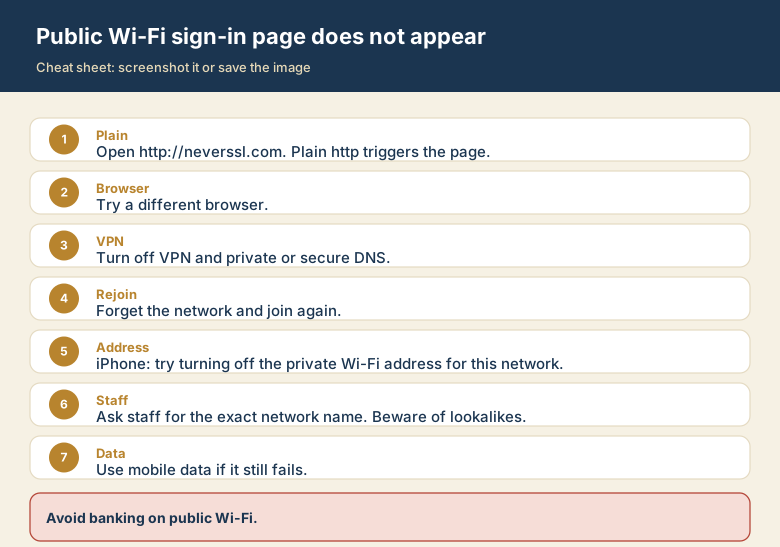
Screenshot this or save the image. It is the short version of the guide, and it is easier to find in a hurry than a web page.